
Visualizing a home renovation or interior design idea has traditionally required advanced design skills, professional...
TurboCAD 2026 is here. Upgrade from any earlier version and save.
See upgrade prices →
Questions? [email protected]
Latest posts
-
 Turn Your Ideas into Stunning Home Designs with Copilot Image StudioRead more
 -
 Create Realistic Home Renderings with Reference Images in Home Design CopilotRead more
Reference images help transform ideas and inspirations into more accurate and personalized designs. With Home Design...
-
 Home Design Help in Copilot: Find Answers and Solutions FasterRead more
Home Design Help in Copilot is a powerful assistance feature designed to help users get quick guidance and support...
-
 Understanding Design Preservation in Home Design Copilot Image StudioRead more
Home Design Copilot Image Studio gives you precise control over how closely AI-generated images follow your original...
-
 From Ideas to Solutions: Using General Questions in Home Design CopilotRead more
Designing a home often begins with questions. Whether you’re planning a new house, renovating a room, choosing...
-
 Exploring Input Options in Home Design Copilot Image StudioRead more
Home Design Copilot’s Image Studio provides a powerful and flexible set of input options that allow you to generate...
-
 Enhancing User Experience with Light and Dark Theme Options in Home DesignRead more
The Light and Dark Theme feature in Home Design application allows you to customize the appearance of the interface...
-
 Copilot Palette: Smart Help TriggerRead more
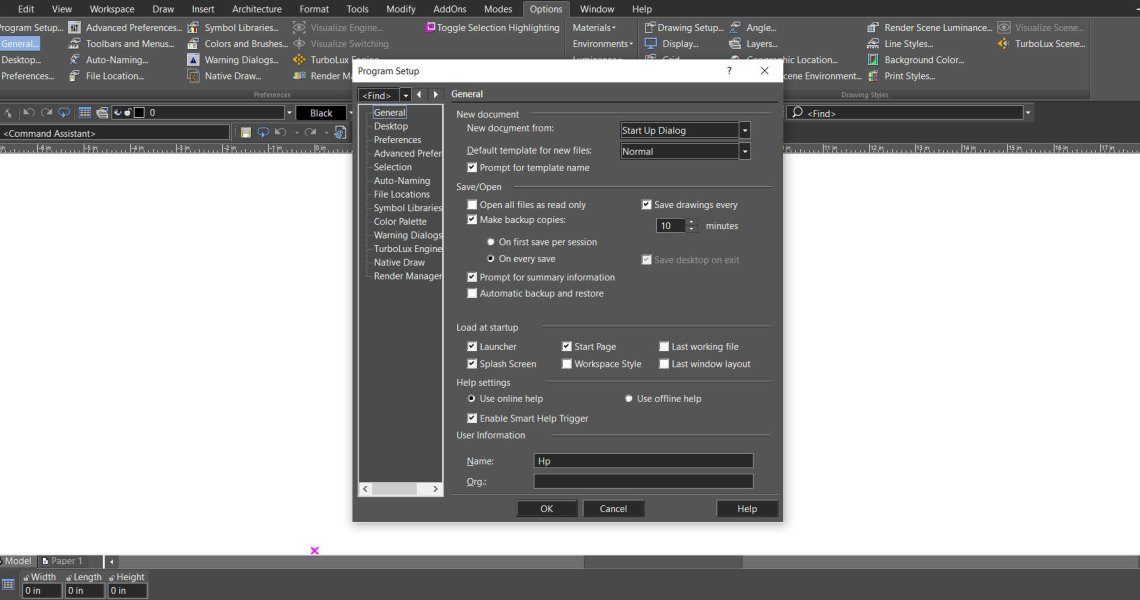
Looking something up usually means breaking off what you were doing. Smart Help Trigger removes that step. With the...
-
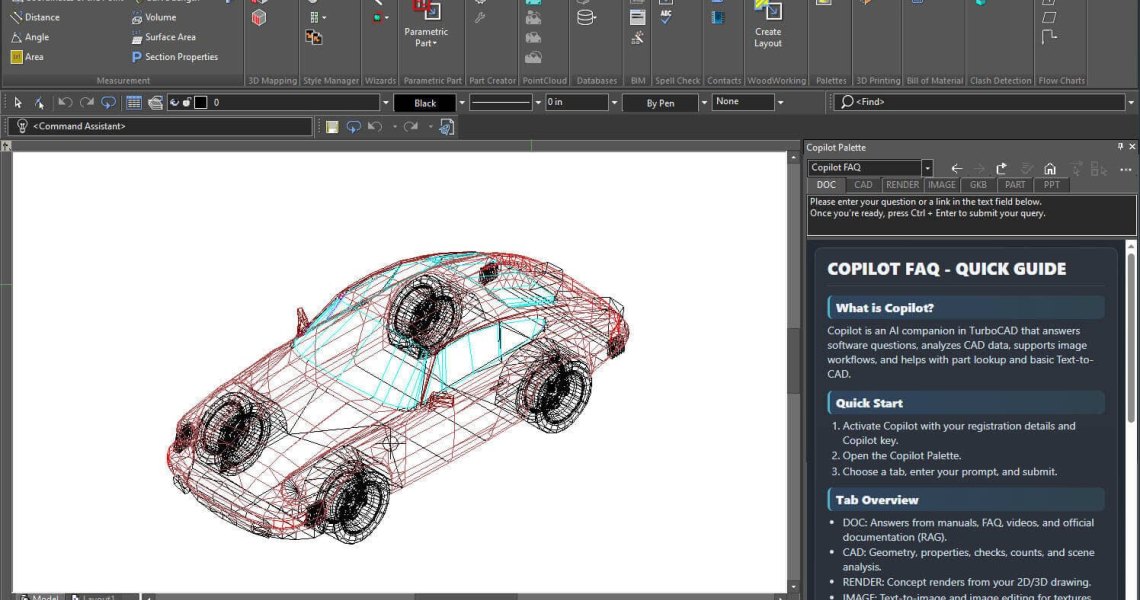 Conceptual Visualization from Your CAD Model with Copilot RenderRead more
There is usually a gap between a drawing that is technically finished and one a client can react to. Copilot Render...
-
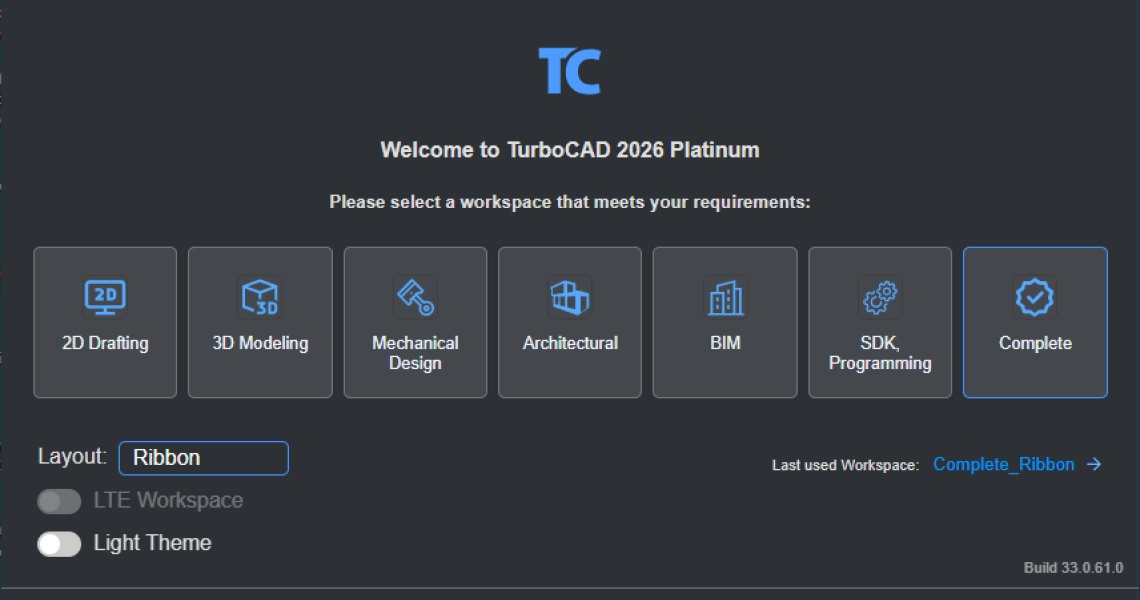 How to Customize and Manage TurboCAD WorkspacesRead more
Most drawing sessions only ever touch a fraction of what TurboCAD can do. A mechanical part and a floor plan need...
Blog categories
Search in blog
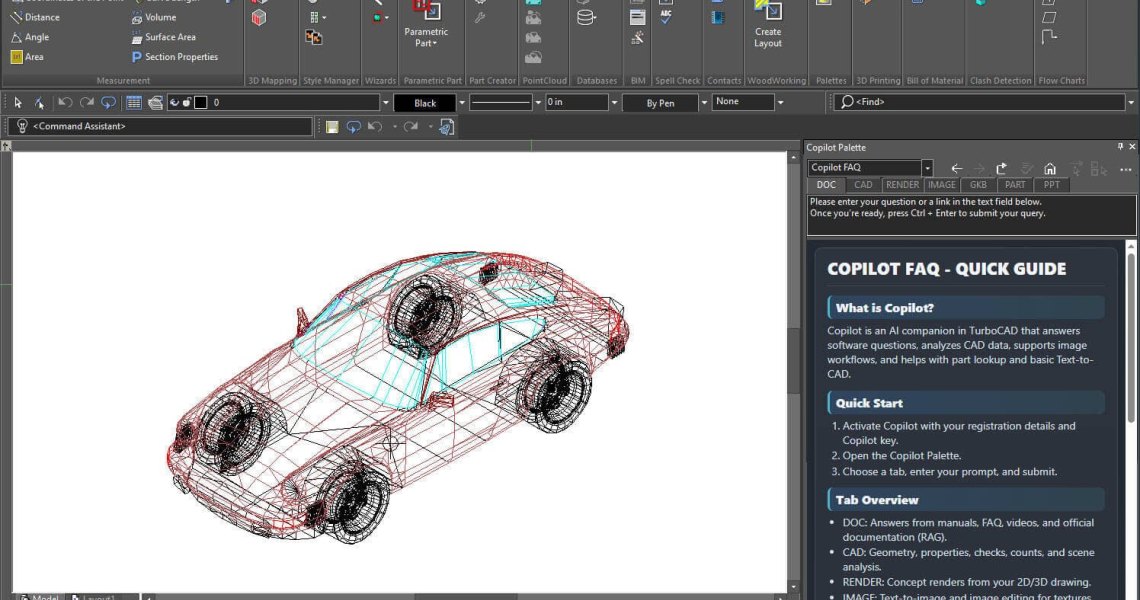
Conceptual Visualization from Your CAD Model with Copilot Render
There is usually a gap between a drawing that is technically finished and one a client can react to. Copilot Render closes it without leaving TurboCAD. Describe the materials, lighting, setting or mood you have in mind in ordinary language, and it generates a concept image over your existing drawing. The geometry underneath is never modified — so you can keep refining the design while trying out as many visual directions as you like.
From idea to visual concept
Copilot Render works with both 3D models and 2D drawings, which makes it useful to designers, engineers, architects and product developers alike. Early-stage concepts, client reviews, presentation material — it communicates design intent quickly.
You can also supply reference images to steer the result. References influence materials, textures, colour palettes, environments and overall visual style, bringing the output closer to what you actually pictured.
Creative control beyond the prompt
Text prompts are the starting point, not the limit. You can:
- Control how closely the render follows the original CAD geometry.
- Allow more artistic interpretation for conceptual or stylized presentations.
- Use reference images to define materials, textures, backgrounds and visual themes.
- Draw on notes stored in your project to keep design intent consistent across variations.
The range runs from photorealistic product renders and architectural visualization through to sketch-style concepts, material studies and open-ended design exploration.
Getting started
- Open the Copilot Palette — from the Tools menu, open Palettes and select Copilot Palette.
- Create a draft rendering — right-click anywhere on the drawing canvas and choose Draft Rendering. After a moment TurboCAD generates a draft of your project.
- Open the Render tab in the Copilot Palette.
- View the overview and examples — click the mouse scroll wheel while the Render tab is active to open the Copilot Render Overview and Examples. These are the fastest way to learn what makes a prompt work.
- Enter your prompt in the prompt field and click Submit.
Posted in:
TurboCAD
Related posts
-
How to Customize and Manage TurboCAD Workspaces
Most drawing sessions only ever touch a fraction of what TurboCAD can do. A mechanical part and a floor plan need...Read more
-
Copilot Palette: Smart Help Trigger
Looking something up usually means breaking off what you were doing. Smart Help Trigger removes that step. With the...Read more
-
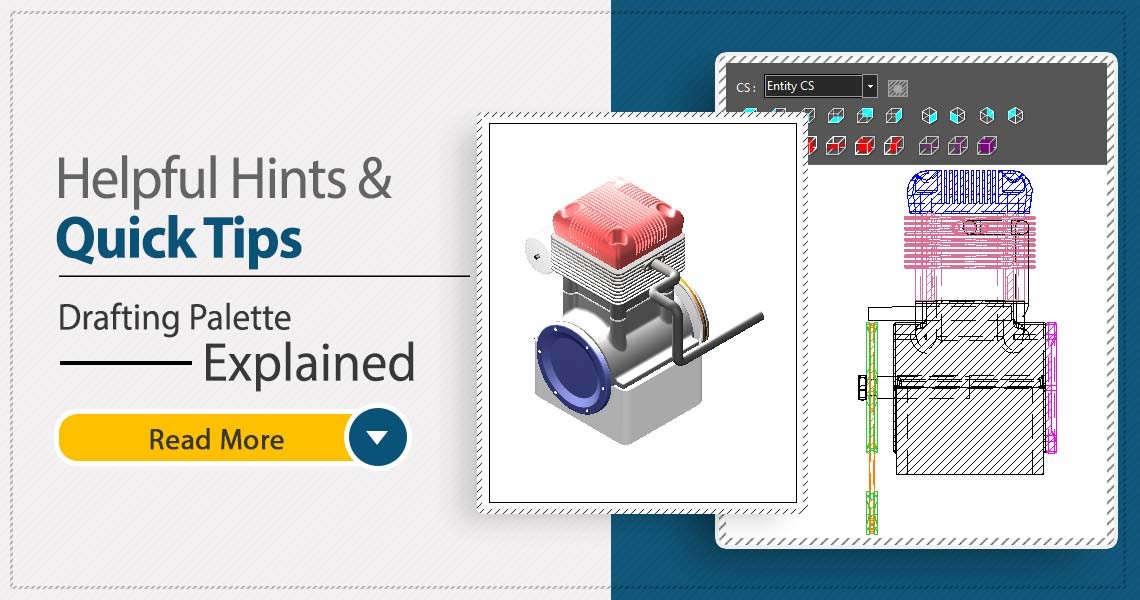 TurboCAD Drafting Palette: A Powerful Tool for 2D Documentation
One of the most powerful, yet least known tools in professional versions of TurboCAD is the Drafting Palette. The...Read more
TurboCAD Drafting Palette: A Powerful Tool for 2D Documentation
One of the most powerful, yet least known tools in professional versions of TurboCAD is the Drafting Palette. The...Read more -
 TurboCAD for AutoCAD Users
Once you’ve made the decision to use TurboCAD, this guide will help you get started by outlining the few differences...Read more
TurboCAD for AutoCAD Users
Once you’ve made the decision to use TurboCAD, this guide will help you get started by outlining the few differences...Read more -
 Design Director
The Design Director is a powerful and convenient palette in TurboCAD that helps you streamline your work and enhance...Read more
Design Director
The Design Director is a powerful and convenient palette in TurboCAD that helps you streamline your work and enhance...Read more
Leave a comment