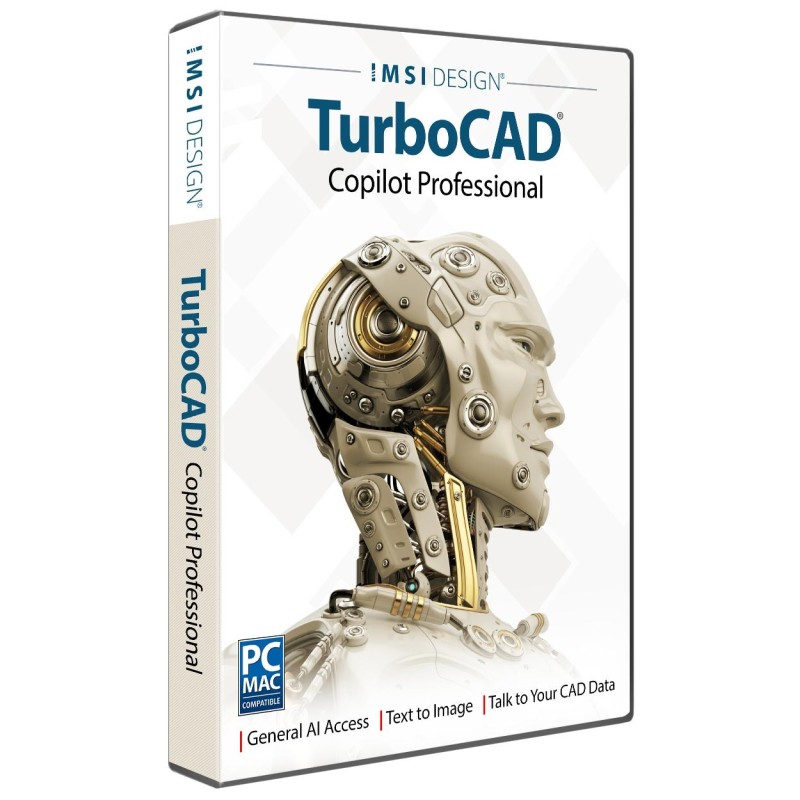
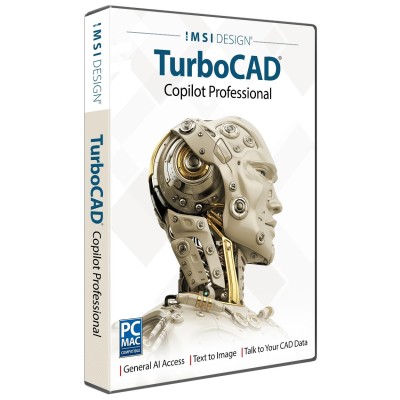
Unlock the full potential of your design process with Copilot, the AI-driven companion seamlessly integrated into TurboCAD®. This integrated AI tool streamlines navigation, expedites your project's progress, and enhances your design endeavors with insightful analysis. Copilot supports two levels: TurboCAD® Copilot Help and TurboCAD® Copilot Professional.
Bought together with TurboCAD Copilot Professional. Each is added as its own licence.
 TurboCAD 2026 Windows
$1,499.99
TurboCAD 2026 Windows
$1,499.99
 DesignCAD 2025
$249.99
DesignCAD 2025
$249.99
 LightWorks Plug-in for TurboCAD
$199.99
LightWorks Plug-in for TurboCAD
$199.99
 Maintenance & Support Renewal - FloorPlan
$74.99
Maintenance & Support Renewal - FloorPlan
$74.99
Copilot supports two levels: TurboCAD® Copilot Help and TurboCAD® Copilot Professional. TurboCAD® Copilot Help provides essential support by using Retrieval-Augmented Generation (RAG) to find and integrate relevant information from TurboCAD® documentation, including the User Guide, FAQ, YouTube Channel videos, New Features docs, Press releases, Blogs, and select categories from the User Forum. TurboCAD® Copilot Professional includes all the features of Copilot Help and goes beyond that, supporting advanced capabilities such as Talk to your CAD Data for direct interaction with project files, General AI access for broader design assistance, and Text to Image for generating images to enhance creativity.
TurboCAD® Copilot is your go-to assistant for a multitude of tasks.
With TurboCAD® Copilot, you’re not just working smarter; you’re transforming the way you interact with your CAD software—effortlessly and efficiently.


The Talk to your CAD Data feature in TurboCAD® Copilot Professional allows users to interact with their CAD (Computer-Aided Design) data using natural language processing. This means you can ask questions or give commands to the CAD system in plain language, and the AI-powered TurboCAD® Copilot Professional will interpret your input and perform the necessary actions or retrieve the relevant information.
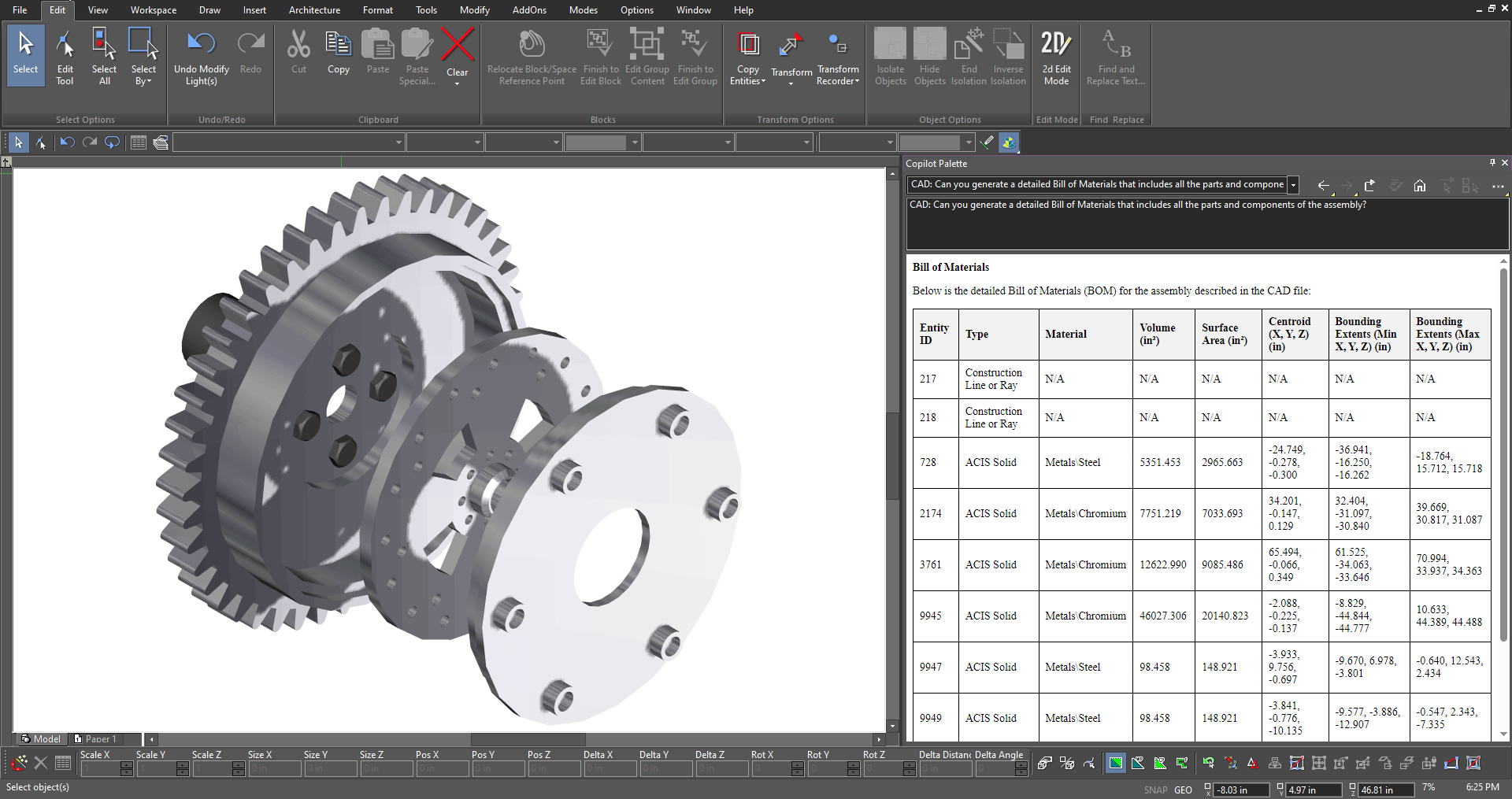
Talk to your CAD Data (Windows) |
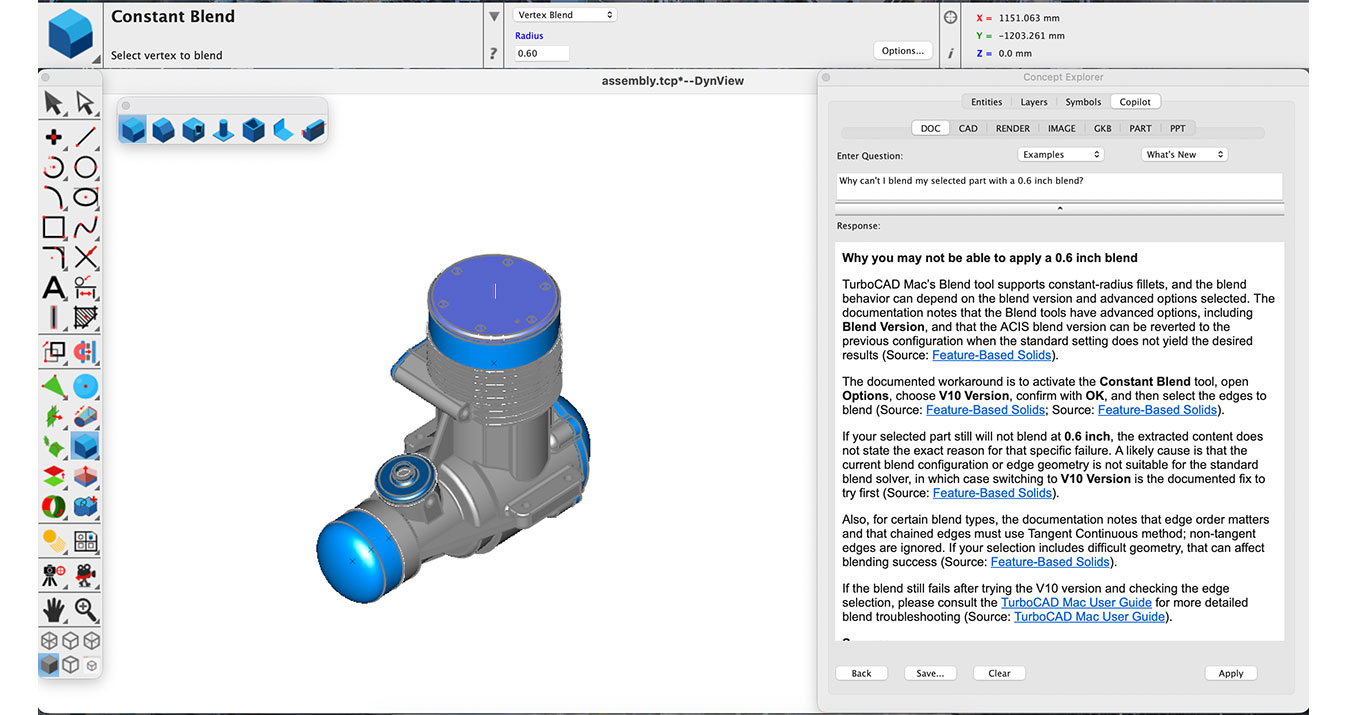
Talk to your CAD Data (Mac) |
For example, you could say, “Why can’t I blend my selected part with a 0.6 inch blend?” and TurboCAD® Copilot Professional would understand your request and provide the requested answer. This feature aims to make it easier for designers and engineers to work with complex CAD models by simplifying the interaction process and making data more accessible without the need for intricate commands or deep menu navigation.
The General AI Access feature in TurboCAD® Copilot Professional provides users with the ability to leverage the broad capabilities of AI to access and present information, insights, and assistance across a wide range of topics within the CAD environment. Users can instantly tap into a vast repository of information and expertise across various subjects directly within TurboCAD®. It can address diverse topics and tasks, making it a versatile resource for different needs, from design queries to technical support.
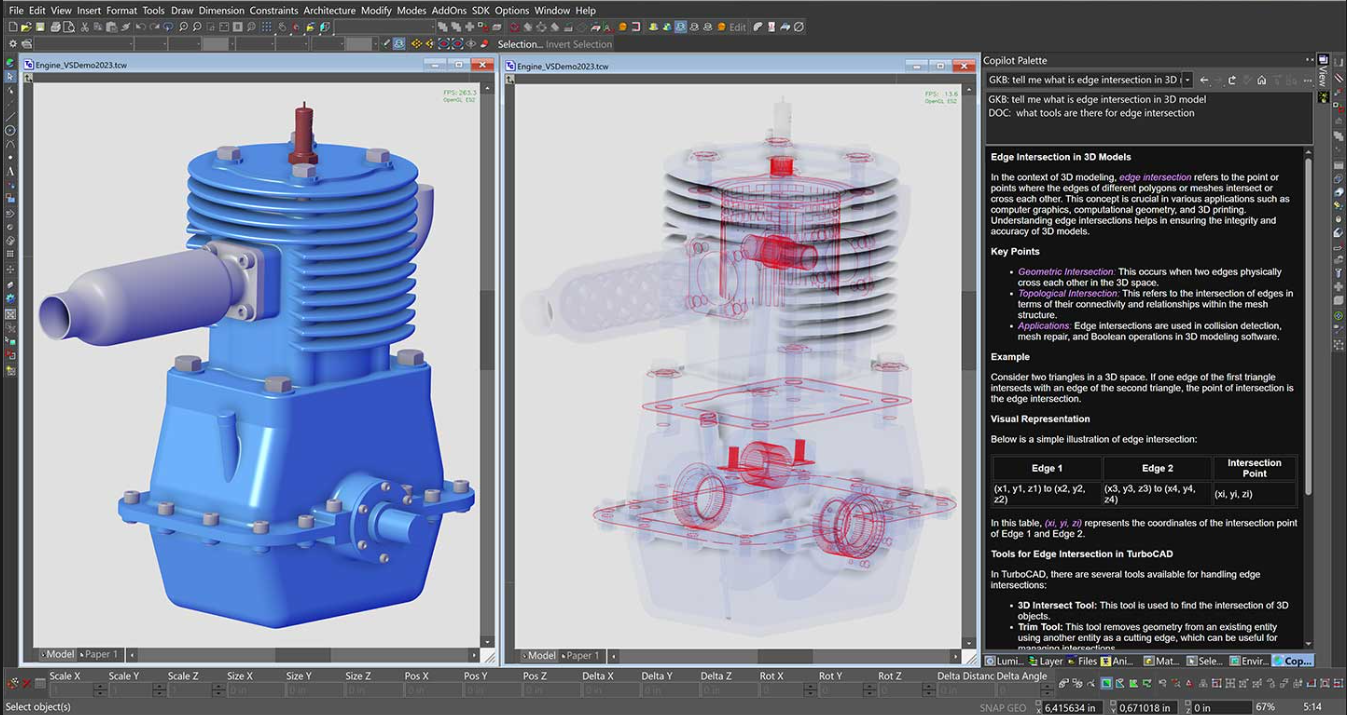
General AI access
The Text to Image feature in TurboCAD® Copilot Professional allows users to create visual content directly from textual descriptions within the CAD environment. This is particularly useful for designers and engineers who want to visualize concepts or ideas quickly without having to manually draw or model them.
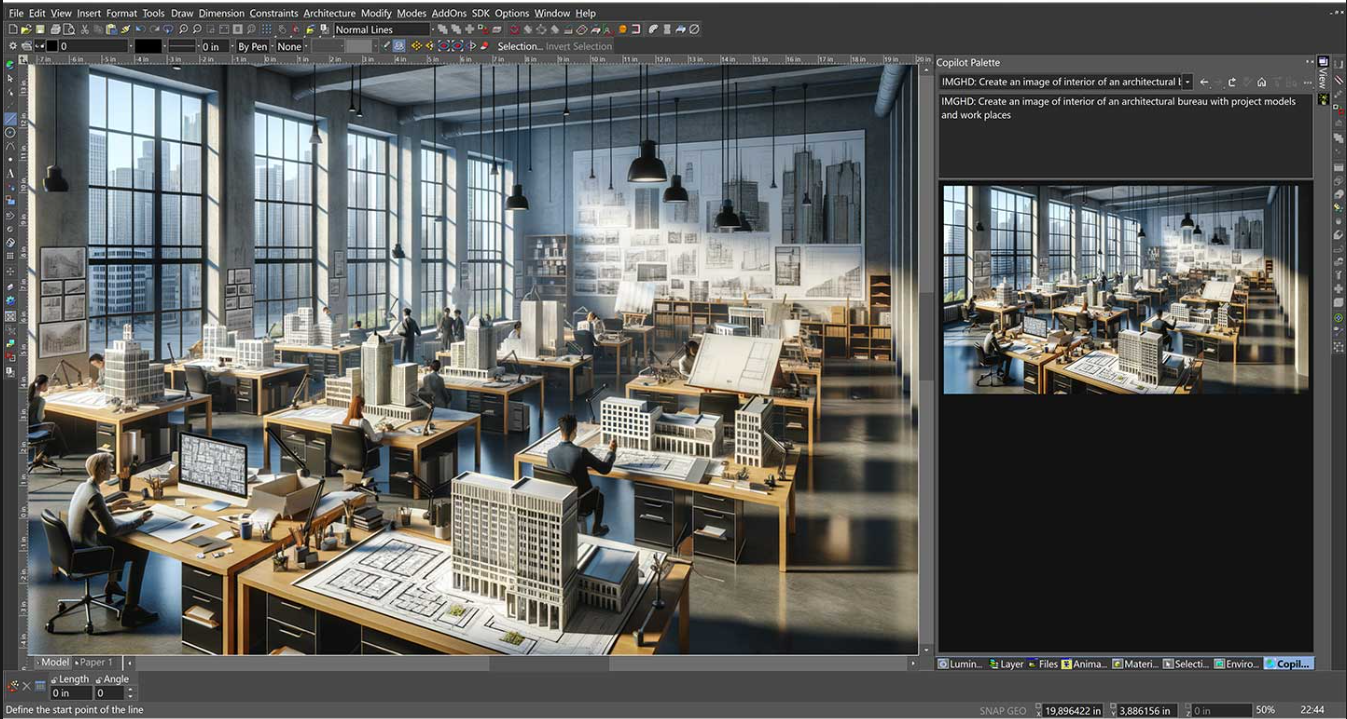
Text to Image (Windows) |
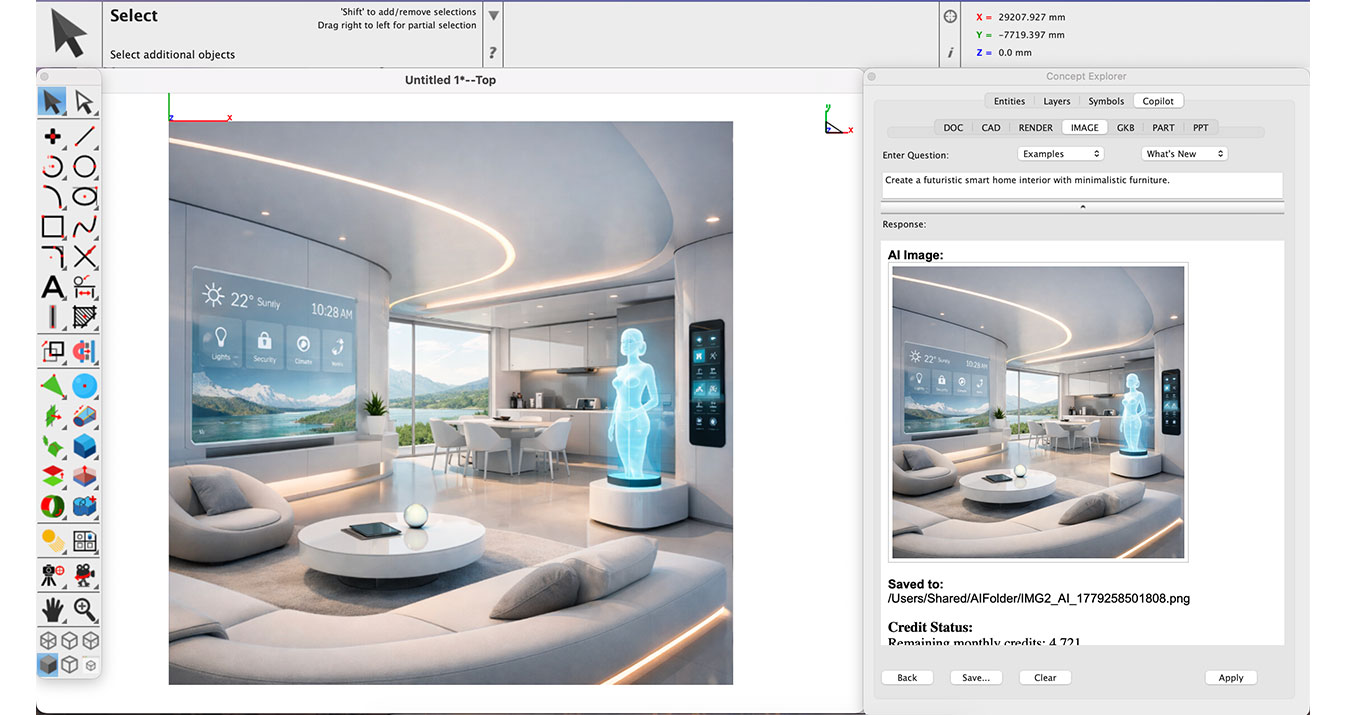
Text to Image (Mac) |
For instance, if you provide a text prompt or description, such as “Design a sleek electric car with solar panels,” TurboCAD® Copilot Professional generates an image that reflects this description. This capability fosters innovation and aids in the exploration of design possibilities without the need for detailed modeling from scratch. It’s a way of integrating AI-driven creativity into the CAD workflow, making it more dynamic and responsive to the designer’s imagination.


Bringing Clarity to Complex Rendering
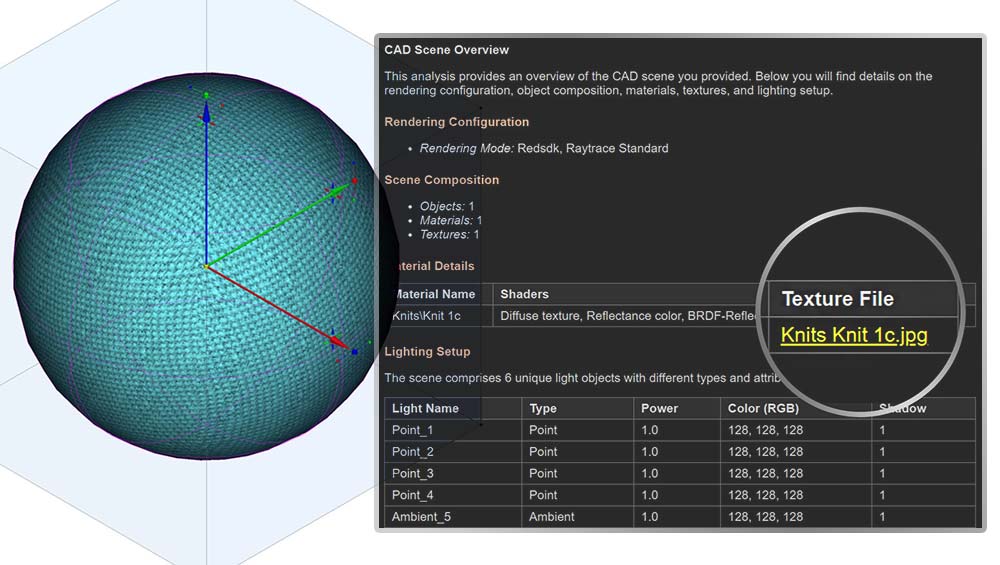
Dive deeper into every detail of your rendering scenes with a powerful analysis tool. Designed for precision and clarity, this feature provides invaluable insights for CAD designers, ensuring optimal results.
Key aspects of Rendering Scene Analysis include:
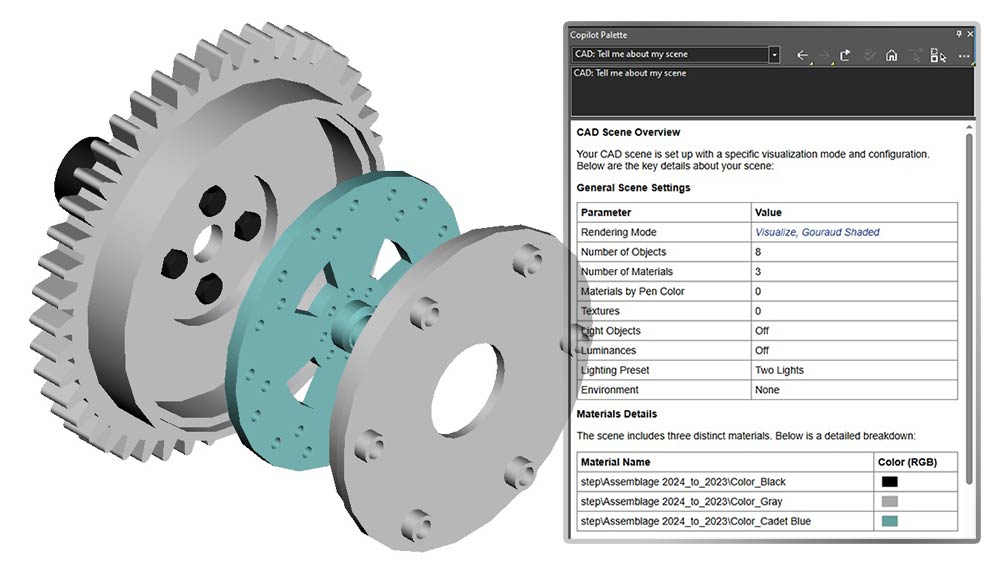
Rendering Scene Analysis (Windows) |
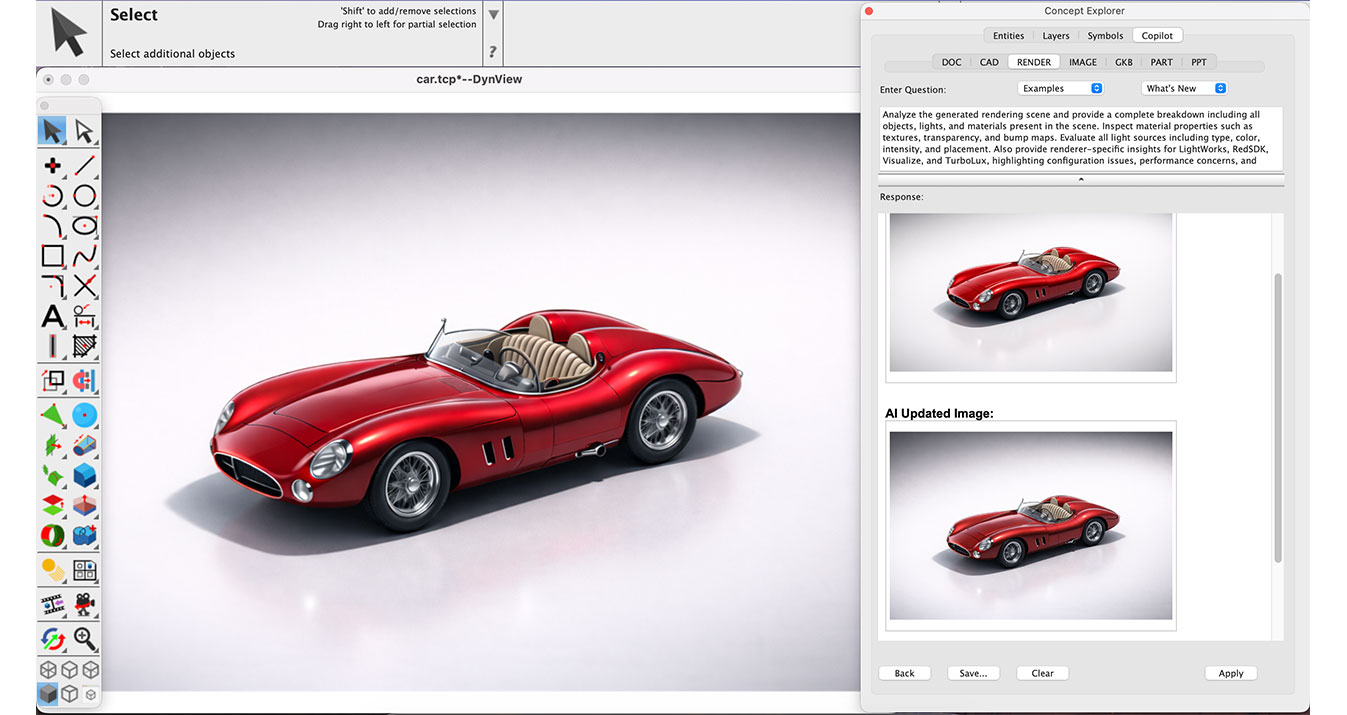
Rendering Scene Analysis (Mac) |
This comprehensive reporting helps artists and designers optimize scenes for photorealistic results.
See More, Work Faster, Deliver Better
The new report enhancement options include:
Visual Features (Windows) |
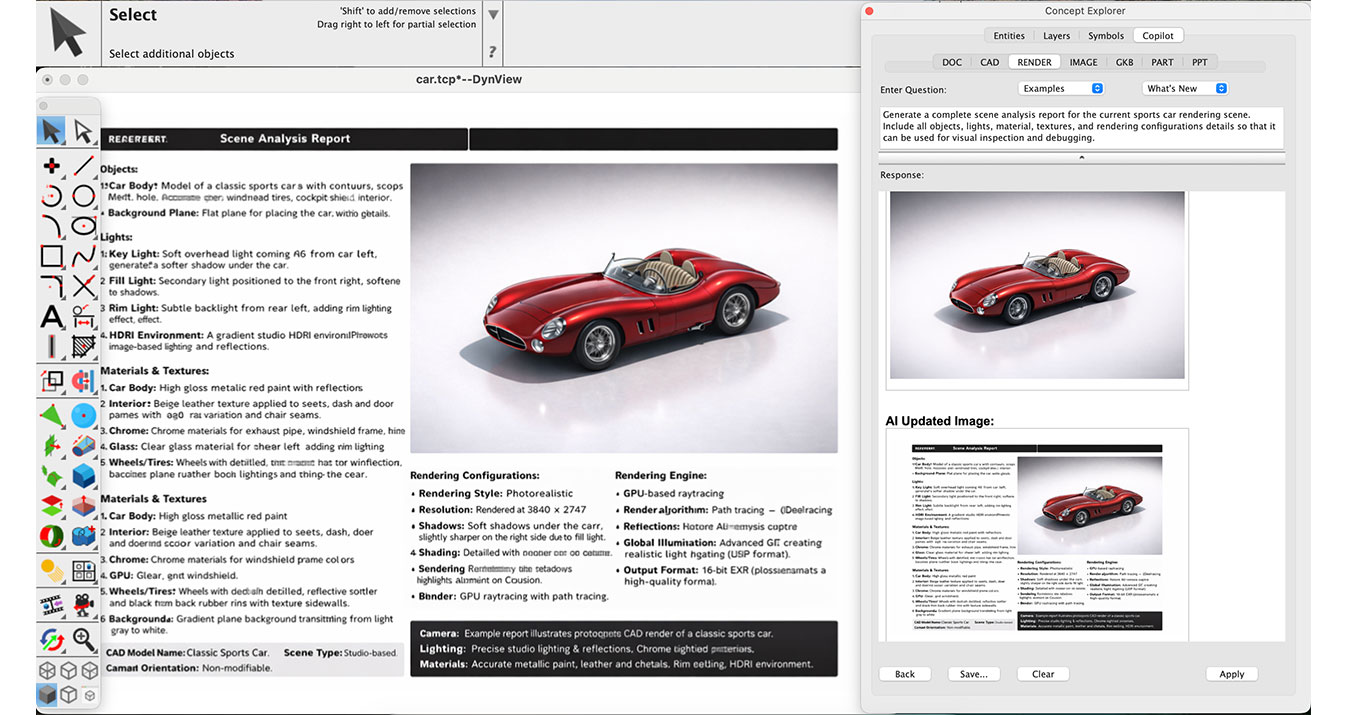
Visual Features (Mac) |
These features bring reporting capabilities up to professional standards, enhancing both functionality and user experience.
Design the Future—With Words
With TurboCAD® Copilot Professional, we are taking a bold step forward in CAD design. Our AI-powered Basic Text-to-CAD feature redefines the way users interact with CAD tools, enabling the creation of CAD objects through simple natural language commands. This innovative functionality reflects our dedication to advancing technology, making CAD design more intuitive and accessible than ever.
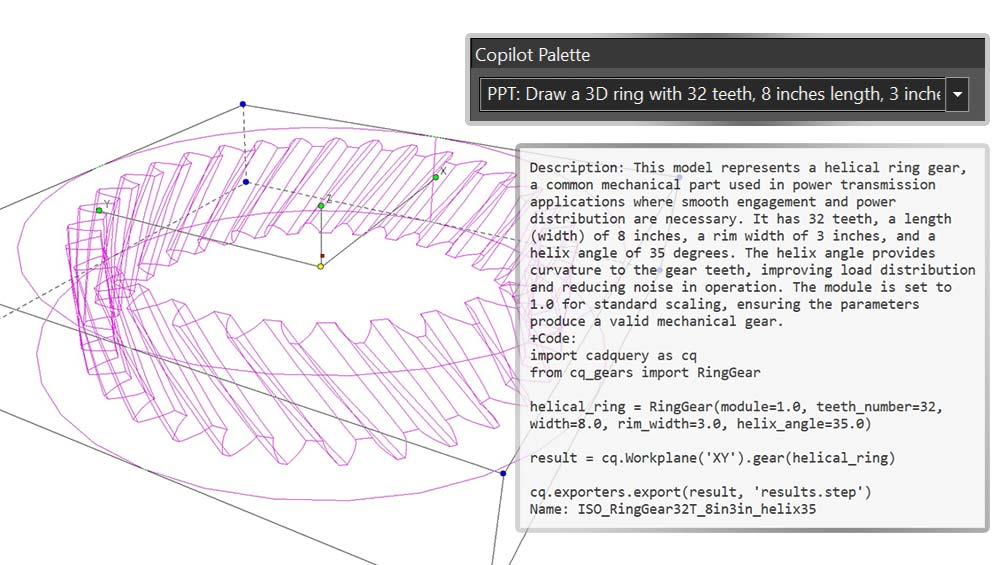
Basic Text-to-CAD
As pioneers in this field, we are proud to lead the charge toward a future where technology and creativity unite to unlock exciting new opportunities in design.
Note: This feature represents an exciting foundational phase in our journey toward a fully integrated Text-to-CAD experience. While it currently offers basic capabilities—and not every functionality is unlocked yet—we are actively exploring ways to expand and enhance it in the future.
Design Smarter, Not Harder
Whether you’re crafting gears for a planetary system, structuring I-beams for a project, or refining ISO-standard screws, Part Creator adapts to your needs. Input parameters like module, tooth count, or helix angle, and watch as the tool generates flawless 3D models—no manual calculations required. From spur gears to herringbone racks, every part is built to your exact specifications.
The powerful new part tools offer:
Part Creator:
Part Editor:
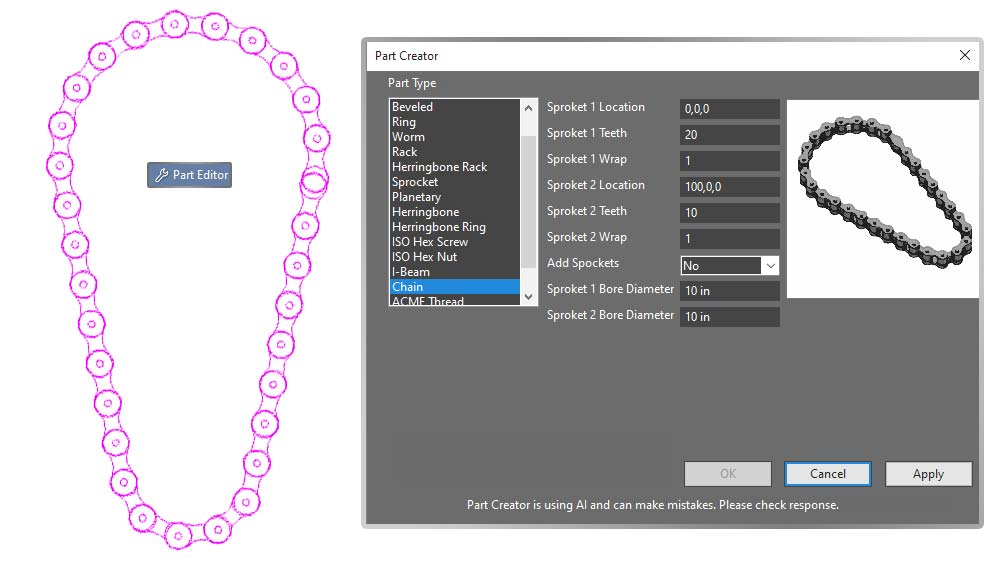
Part Creator (Windows) |
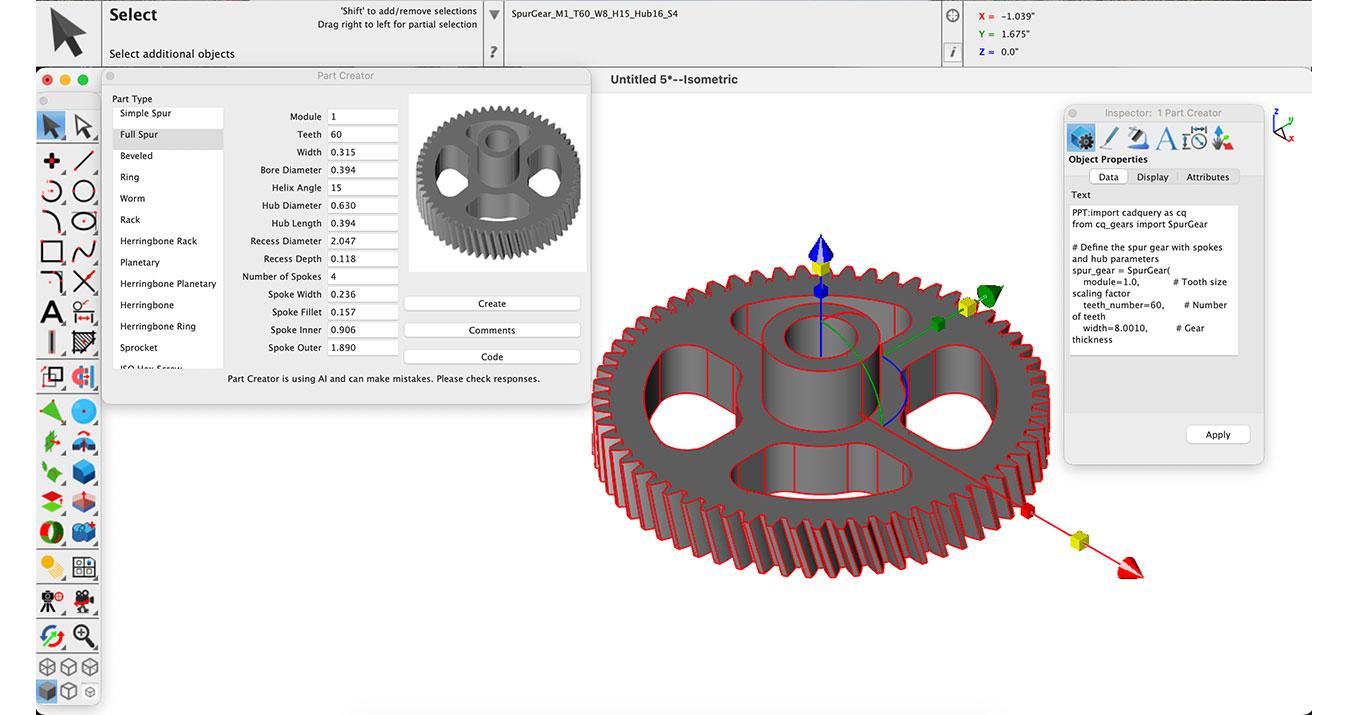
Part Editor (Mac) |
Need a sprocket with custom bolt patterns? A hex nut with a flange? Part Creator’s intuitive interface lets you define dimensions, materials, and even thread finishes with ease. Edit parameters later directly via the Part Editor—your design evolves as fast as your ideas.
Visit our Copilot FAQ to find out more about TurboCAD® Copilot!
New features will be available in TurboCAD® Windows 2026 and TurboCAD® Mac 17 only.
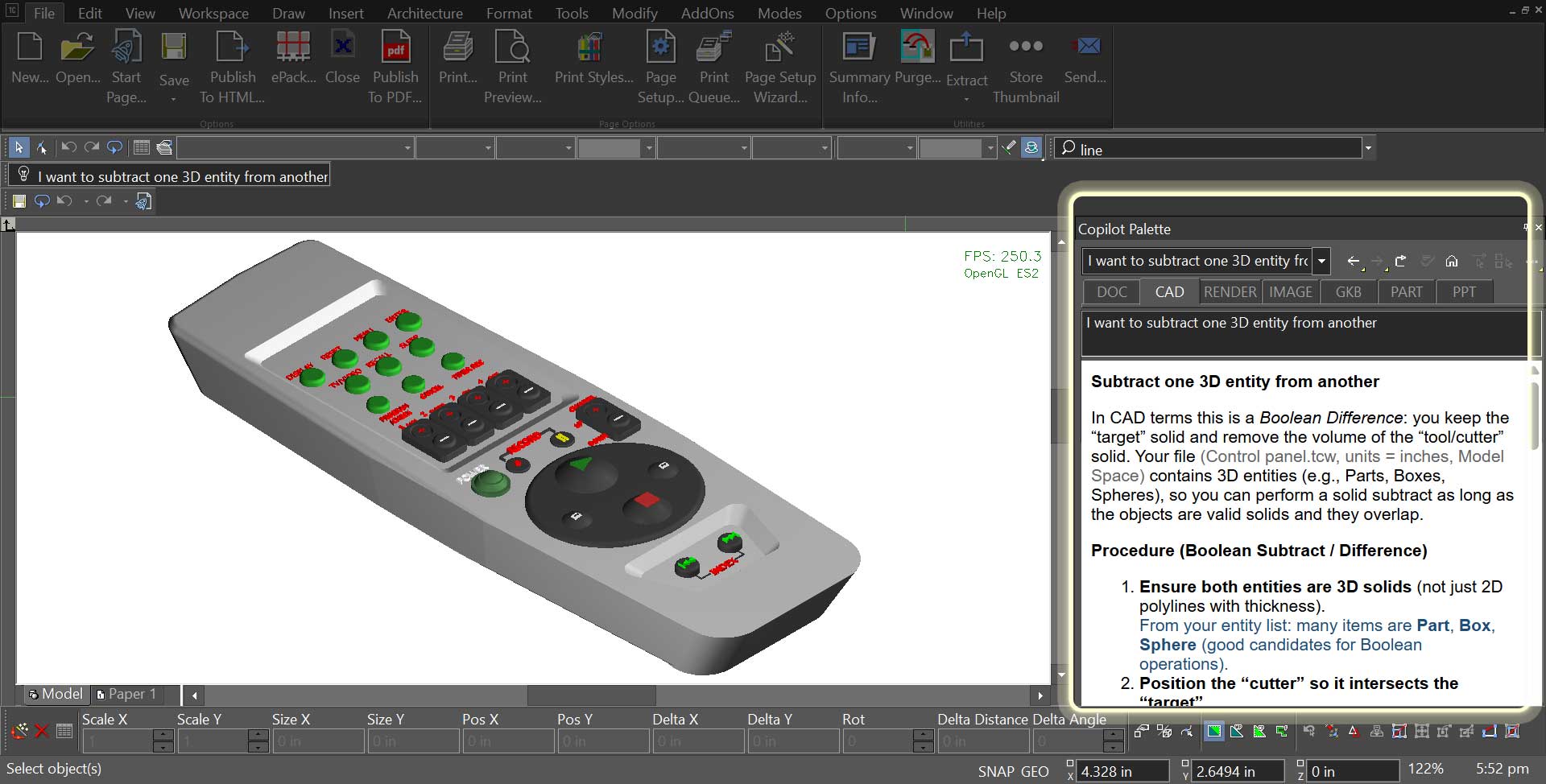
The Command Assistant interprets natural‑language requests entered into the Command Assistant field and turns them into immediate, context‑aware guidance inside the Copilot Palette.
As designers describe an action—whether it’s drawing a shape, adjusting geometry, or modifying surfaces—the Command Assistant identifies the intent and surfaces the most relevant commands or suggestions directly within the palette, without interrupting the modeling flow.
This interaction makes advanced tools easier to reach, reduces time spent searching through menus, and keeps attention on the work taking shape on screen.
The Smart Help Trigger brings contextual guidance directly into the Copilot Palette, giving designers relevant assistance without leaving the drawing environment.
As tools and commands are activated, related help content opens automatically inside the palette, keeping workflows uninterrupted and making it easier to explore features while staying focused on design.
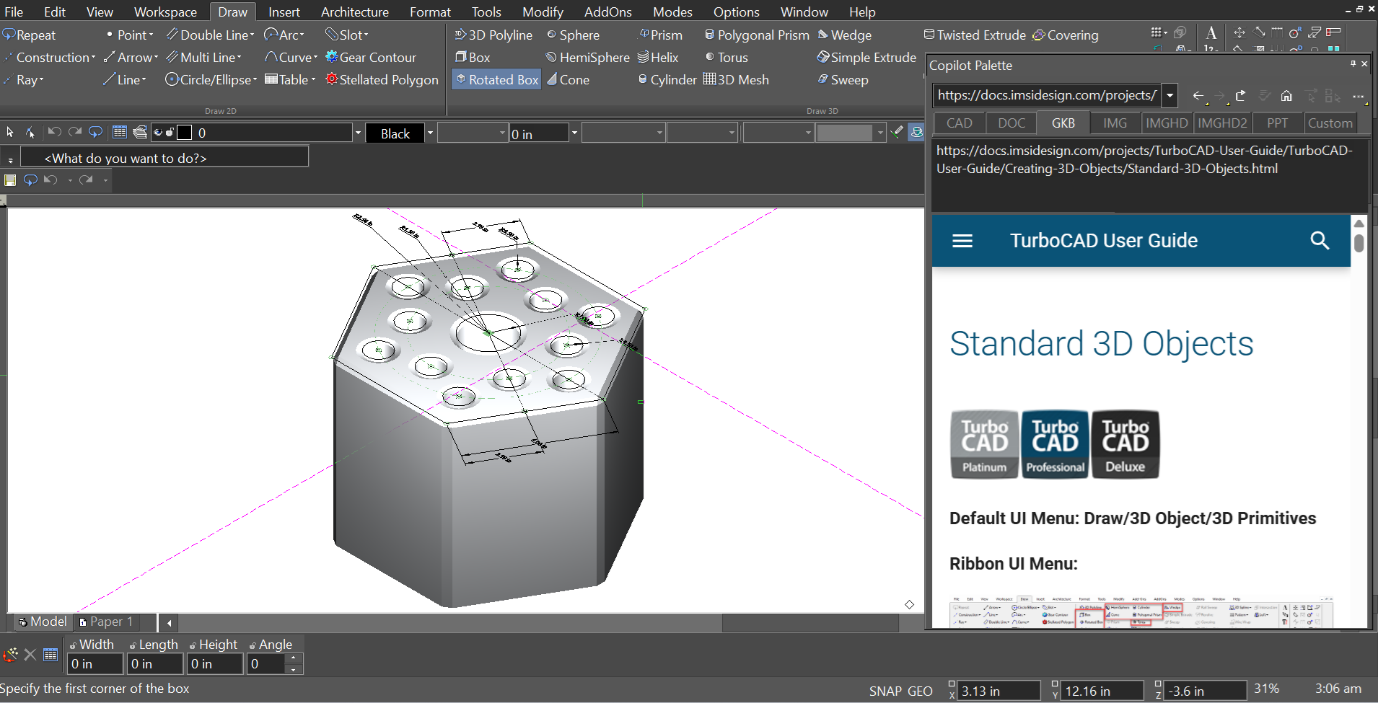
This integrated experience supports faster learning, smoother iteration, and a more natural way to work with complex models.
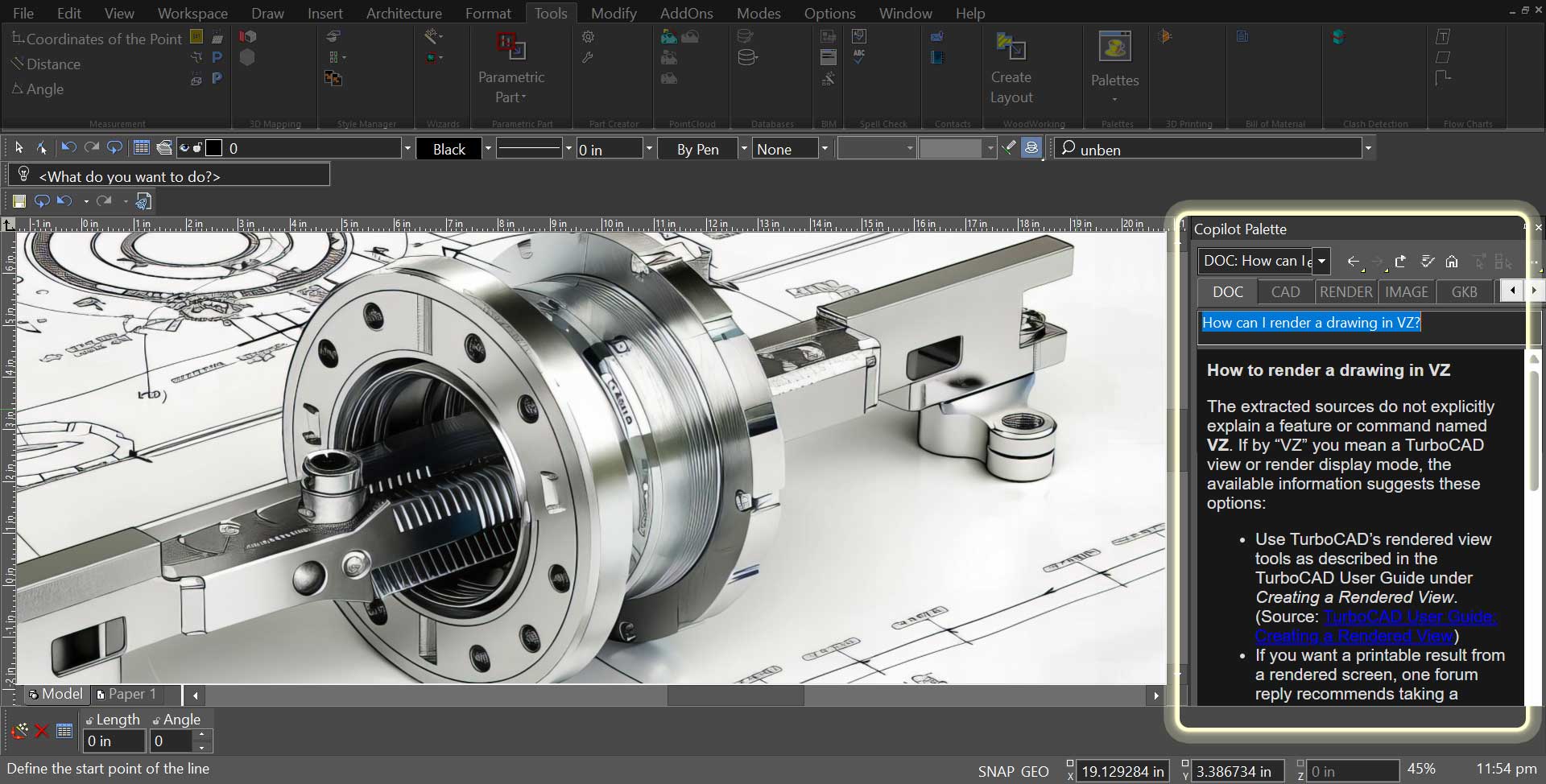
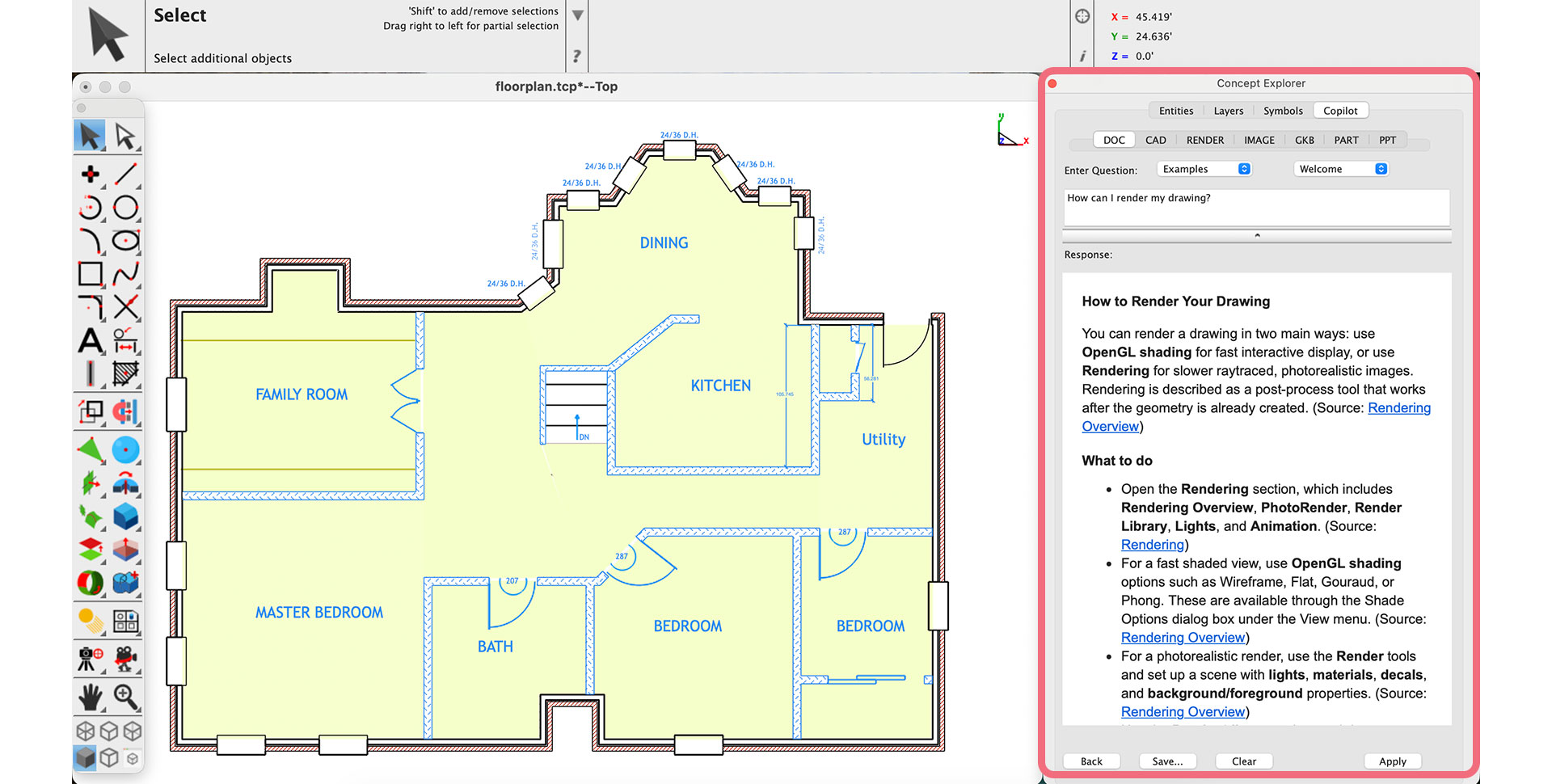
Copilot requests are organized through toggle‑based request‑type tabs, making it easy to define the kind of assistance needed before submitting a prompt.
Instead of relying on text prefixes, users select the appropriate category directly through tabs such as DOC, CAD, RENDER, IMAGE, GKB, PART, and PPT. This visual approach simplifies the workflow and removes the need to remember or type specific prefixes.
This design provides a clearer and more intuitive way to guide Copilot, helping deliver more relevant responses based on the selected request type while improving overall usability.
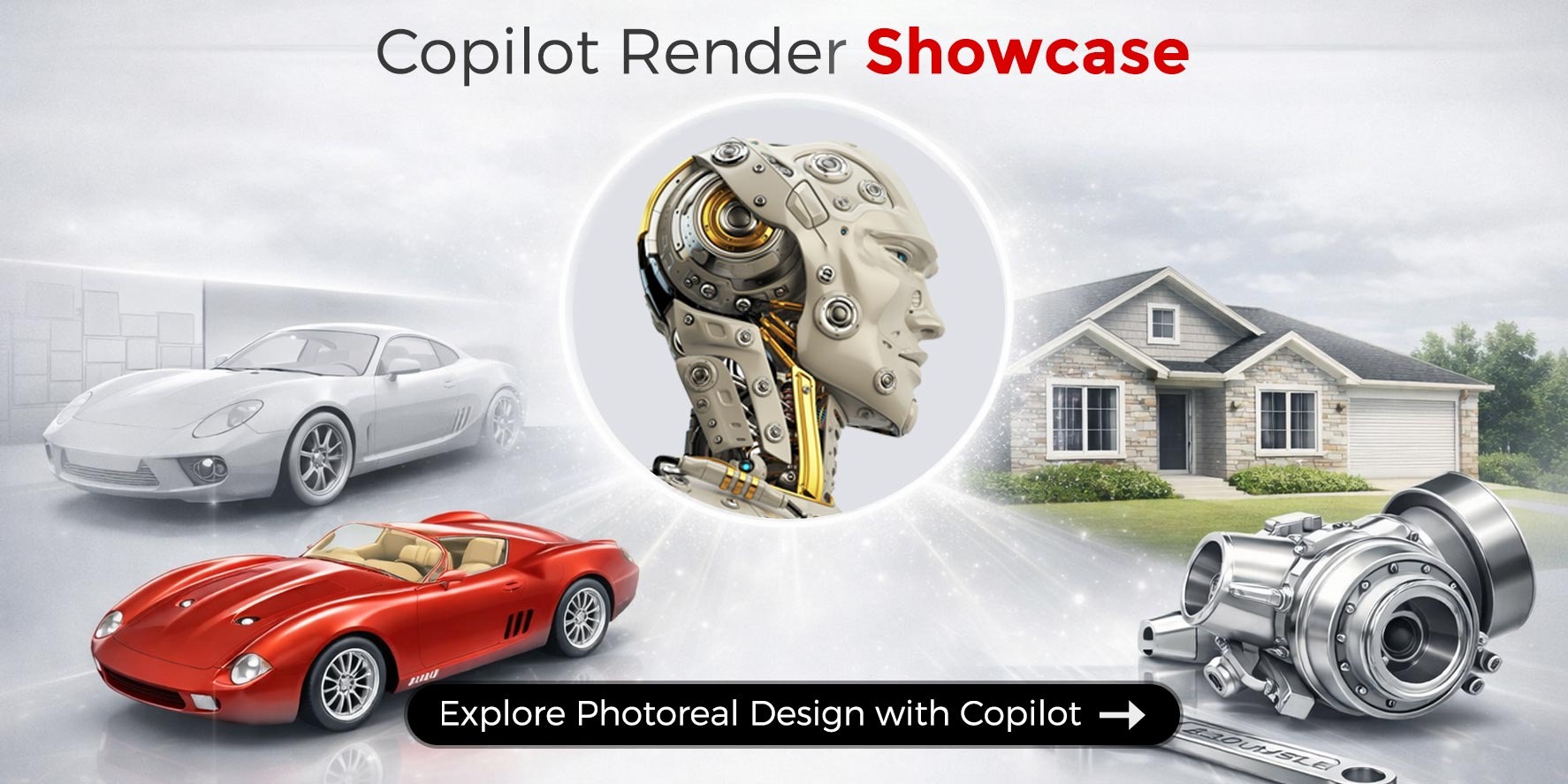
TurboCAD’s Copilot Render turns CAD drawings into expressive visual concepts using simple natural‑language prompts. By describing the desired style, lighting, or environment, designers can generate concept renderings that appear directly on top of the existing drawing—without changing the underlying geometry.
The rendered image is shown inside the active drawing view, making it easy to explore visual ideas while continuing to work in the CAD environment. Multiple variations can be created and compared, allowing quick experimentation with materials, lighting moods, and different architectural or mechanical styles.
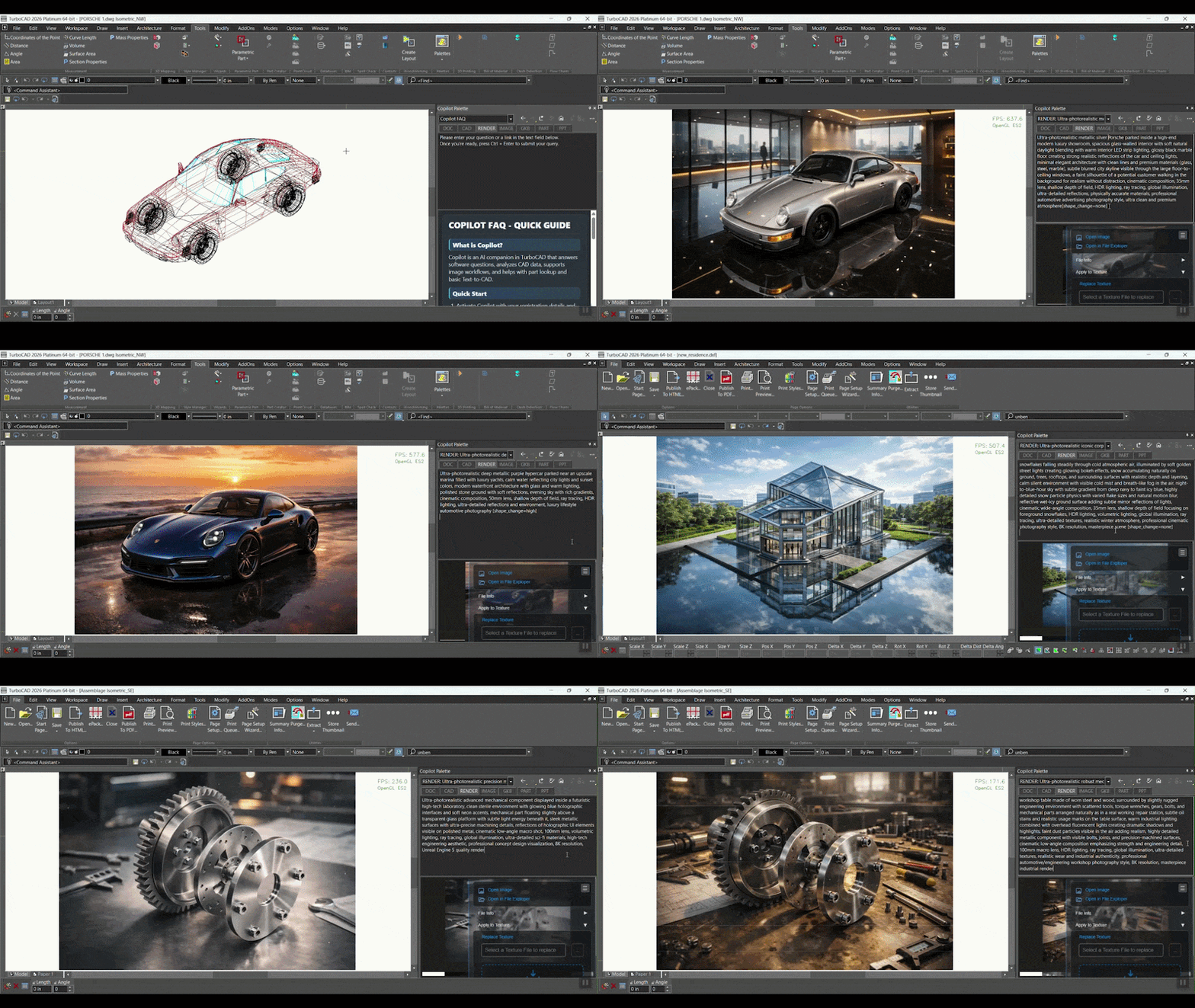
Each render is saved through Copilot Named Views, so designers can return to earlier concepts or switch between visual directions at any time. This creates a flexible way to explore ideas, where conceptual imagery and technical geometry stay connected within the same TurboCAD project.
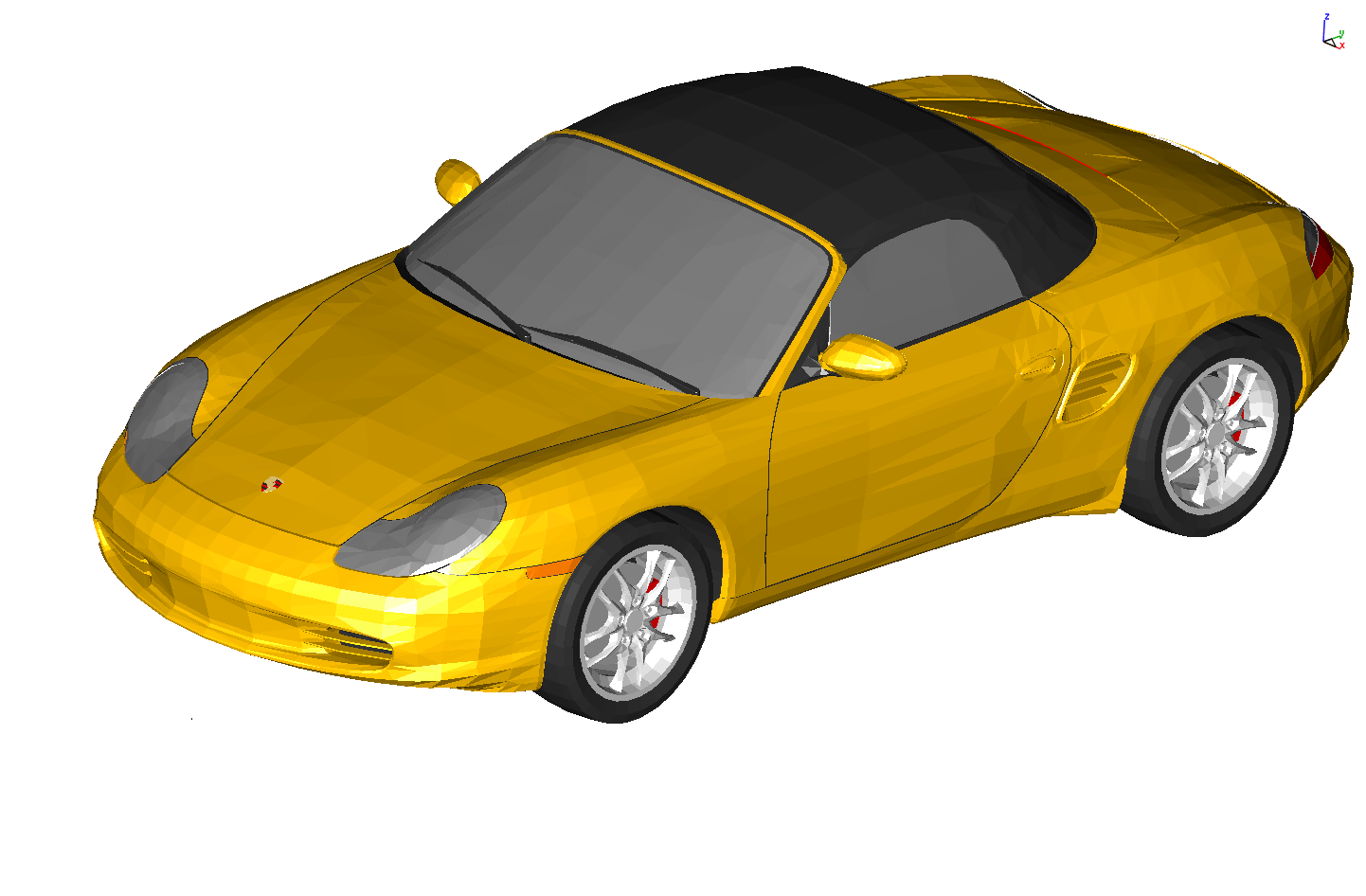
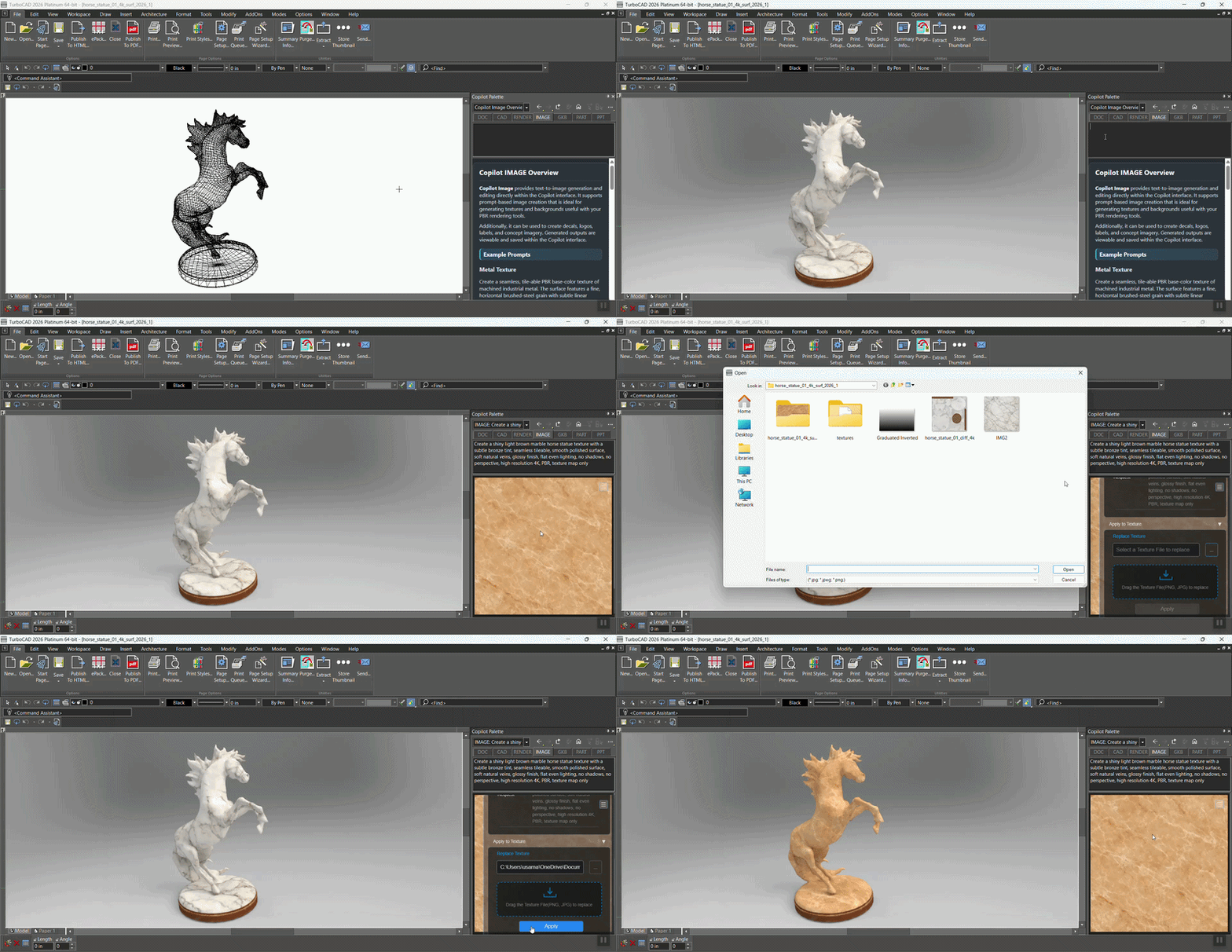
TurboCAD allows images generated in the Copilot Palette to be applied directly as material textures, making it easier to update materials during the design process. Users can replace a material’s texture with a Copilot-generated image in just a few steps, avoiding the need to navigate through multiple settings in the Material Editor.
Within the Copilot IMAGE task panel, the Apply Texture section lets users assign a generated image to a texture file by specifying the texture path or simply dragging and dropping the file into the designated area. If the file formats differ, the system automatically converts them to ensure compatibility.
After the texture is applied, all render scenes that use that material are updated automatically. This helps designers quickly evaluate visual results and maintain an efficient workflow when working with multiple materials and render scenes.
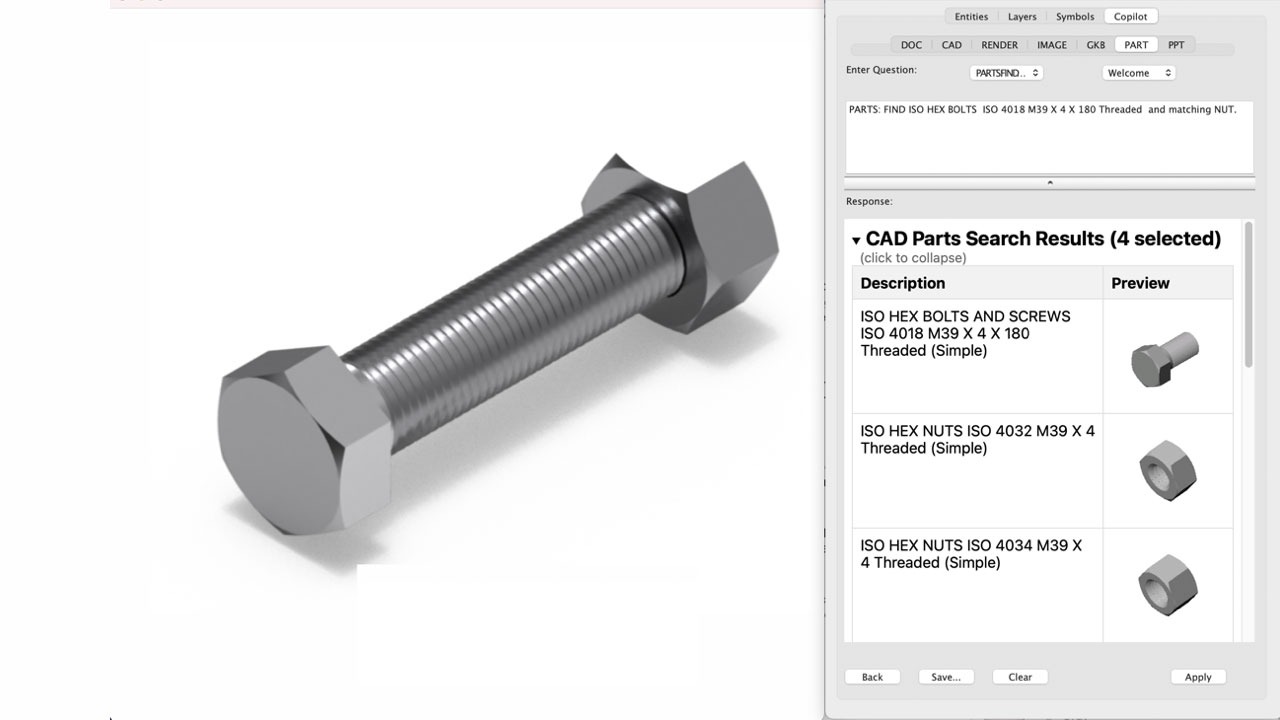
TurboCAD lets you search for mechanical parts directly through the Copilot Palette, making it easy to bring the right components into your design.
Users can describe the part they need, and Copilot returns matching options with clear previews and key specifications. The visual layout in the Palette helps identify the correct component at a glance.
Parts can be added to the drawing by clicking a preview or dragging the component into the workspace. This direct interaction speeds up assembly work and keeps the focus on design rather than manual part searching.
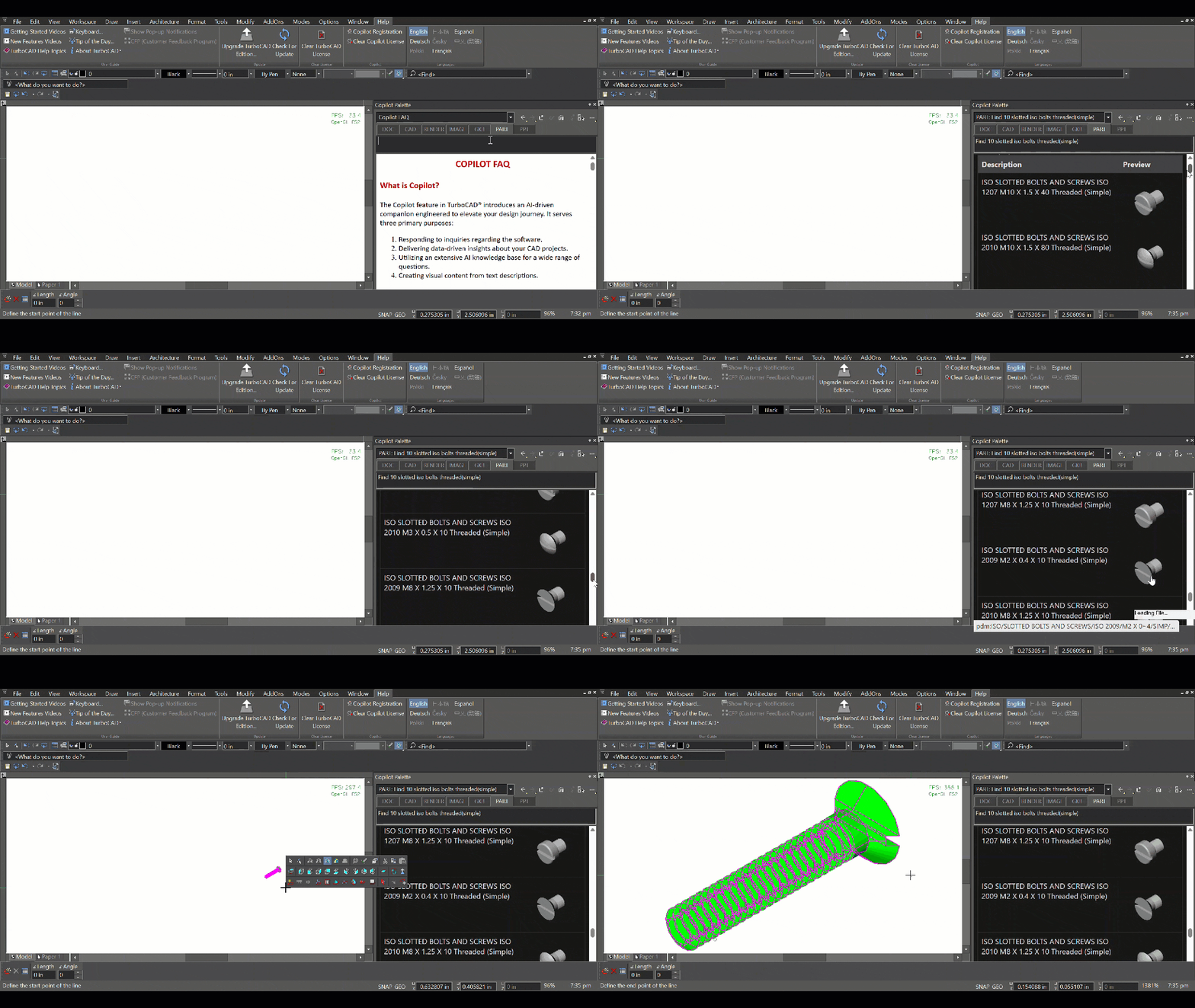
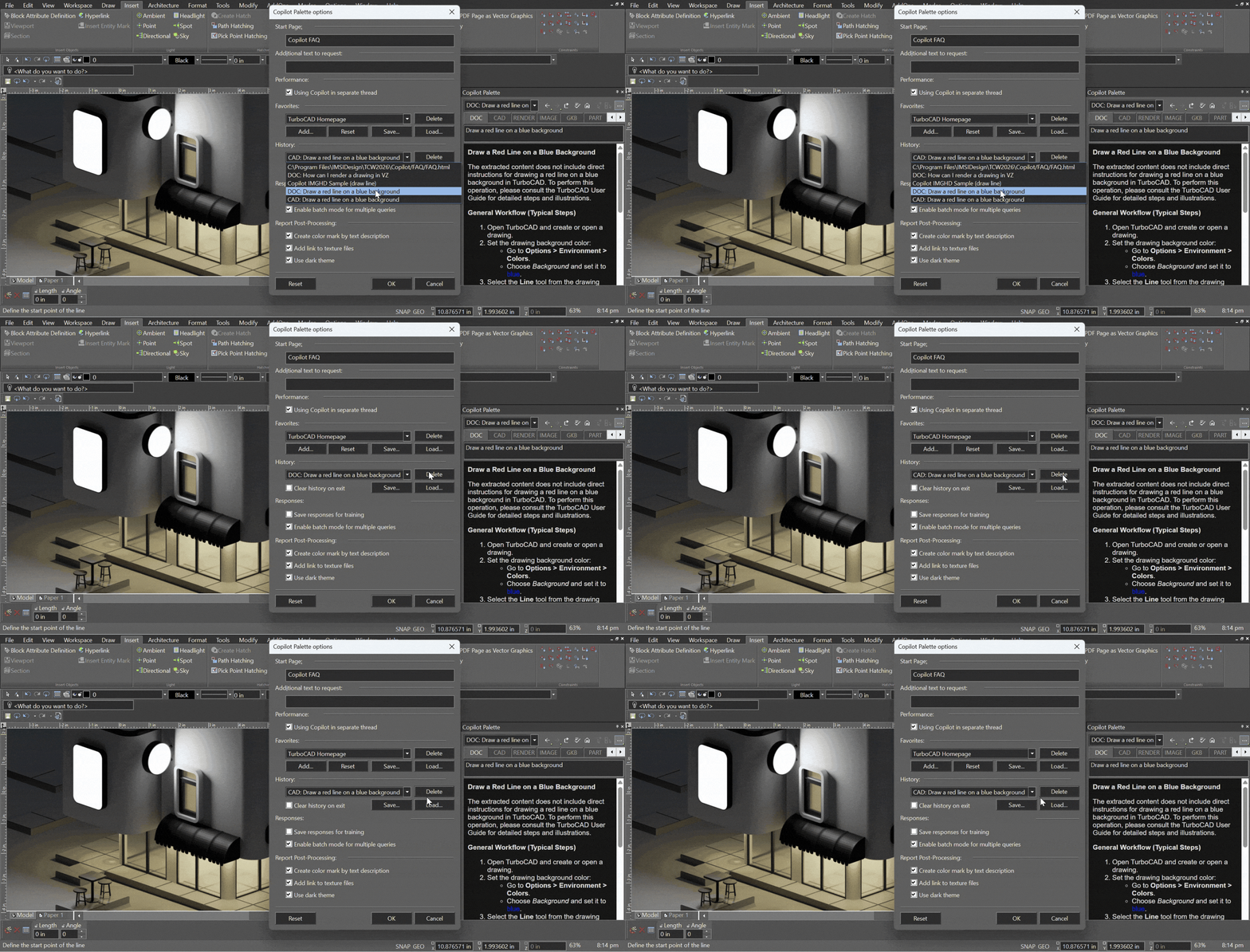
The Copilot Palette offers a simple way to view and manage previously opened links.
History items appear in a dropdown list, allowing users to return to earlier content quickly and without searching. When an entry is no longer needed, it can be removed using the Delete button, keeping the list focused and easy to work with.
The history can store up to 50 links, giving users more room when working across multiple Copilot queries and resources.
Windows
To run this add on, you must have TurboCAD® Windows 2026 Platinum, Professional, Deluxe or Designer installed. The system requirements of TurboCAD® Windows apply.
Mac
To run this add on, you must have TurboCAD® Mac 17 Platinum, Professional, Deluxe or Designer installed. The system requirements of TurboCAD® Mac apply.
Elite 2D/3D CAD Software
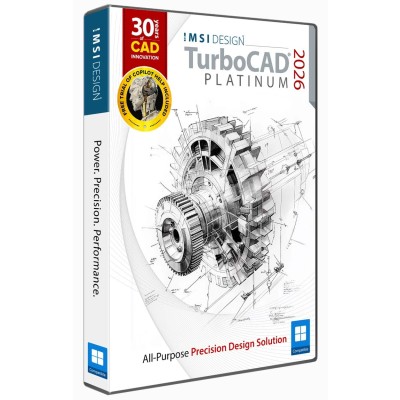
TurboCAD® for Windows offers versatile CAD tools for engineers, architects, designers, and hobbyists. With Platinum, Professional, Deluxe, and Designer versions, it suits all skill levels. Platinum includes advanced 3D modeling, ACIS® solids, and rendering. Professional combines 2D/3D design with strong file support. Deluxe is great for beginners or small businesses, while Designer is ideal for basic 2D drafting. With intuitive tools, tutorials, and wide file compatibility, TurboCAD® delivers precision and creativity for all your design needs.
Note: Multilingual Version (English, French, German). The installer includes additional languages, but some localizations are still in progress and may not function fully.
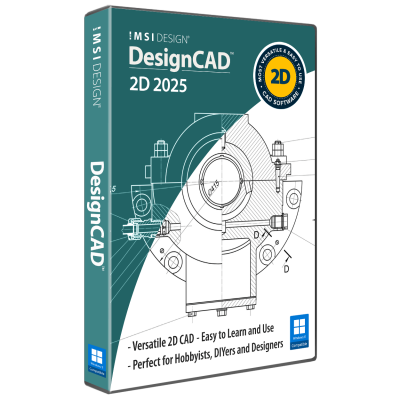
DesignCAD™ offers powerful yet easy-to-use 2D/3D CAD tools for beginners, hobbyists, and professionals. DesignCAD™ 3D Max combines intuitive 2D drafting with advanced 3D modeling, rendering, animation, and 3D printing support—ideal for both learning and pro projects. It supports AutoCAD® files for smooth compatibility. For 2D-focused users, DesignCAD™ 2D Express provides a simple interface with hundreds of drafting tools, perfect for technical drawings and layouts. DesignCAD™ helps bring your ideas to life with precision and ease.
Advanced Rendering Tools for Truly Realistic Results
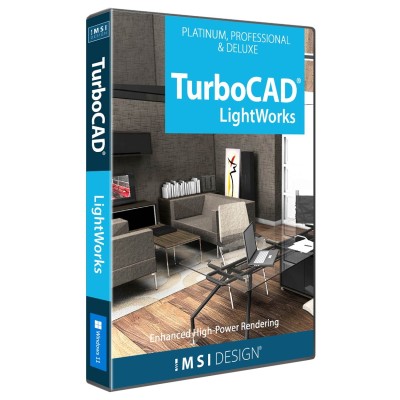
The LightWorks® Plug-in for TurboCAD® significantly improves lighting, luminance, and photorealistic rendering capabilities, resulting in more robust and high-powered renders. Integrating directly with the TurboCAD® Material Editor and Design Director, this plug-in works exclusively with TurboCAD® Platinum, Pro, and Deluxe.
Ensure Continuous Excellence with Our Maintenance & Support Renewal
We understand the importance of keeping your products running smoothly and efficiently. Our Maintenance & Support plans are designed to provide you with the peace of mind that comes from knowing you have access to the latest patches and dedicated technical support.
Animate your TurboCAD® designs.
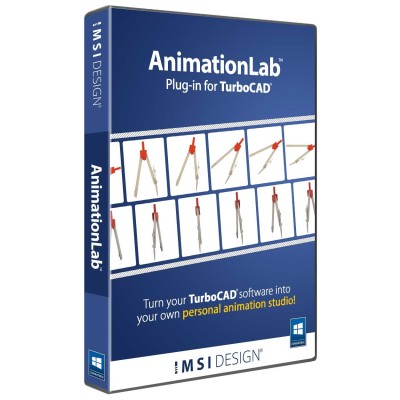
AnimationLab Plug-in for TurboCAD® is easy-to-use software for creating professional-looking animations from your TurboCAD® designs. Use single click animation features to quickly enhance your work, or access high-end animation features for professional presentations.
New: 64-bit for TurboCAD 2026 Platinum. Requires TurboCAD 2026 Platinum 64-bit, build 33.0.65.1 (2026.1) or later.
The Professional Machine Shop Solution
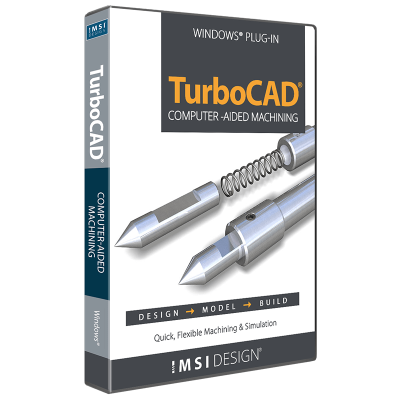
The CAM Plug-in for TurboCAD Platinum is the machinist’s choice for 2.5D CAD. This powerful plug-in generates native G-code for your machining equipment with no need for a post-processor. It includes a built-in communication module that allows you to set up your CNC controller effortlessly!
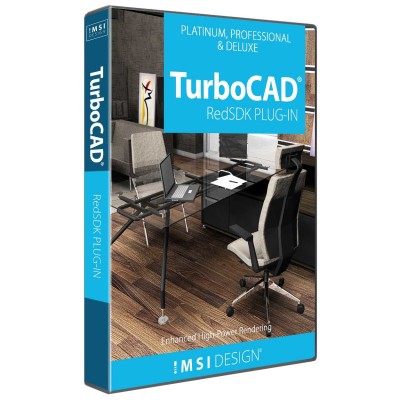
Enhanced Rendering Capabilities with RedSDK® Plug-in
The RedSDK® Plug-in for TurboCAD® significantly enhances the program’s lighting, luminance, and photorealistic rendering capabilities, providing a more robust and high-powered rendering solution. Integrating directly with the TurboCAD® Material Editor and Design Director, this plug-in works exclusively with TurboCAD® Platinum, Pro, and Deluxe.
Advanced Rendering Tools for Truly Realistic Results
The LightWorks® Plug-in for TurboCAD® significantly improves lighting, luminance, and photorealistic rendering capabilities, resulting in more robust and high-powered renders. Integrating directly with the TurboCAD® Material Editor and Design Director, this plug-in works exclusively with TurboCAD® Platinum, Pro, and Deluxe.
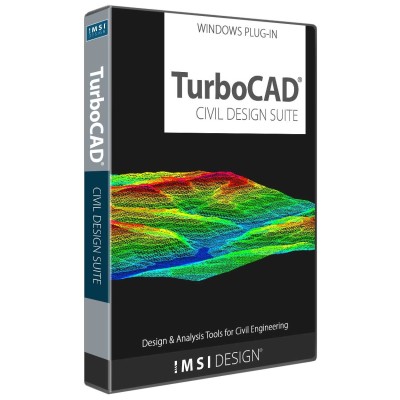
Civil Design Suite for TurboCAD® is a plug-in that enhances your TurboCAD® Software (Deluxe, Pro or Platinum versions) with tools for road design and analysis, surveying and data collection, construction documentation, map production, storm and sanitary analysis and much more.
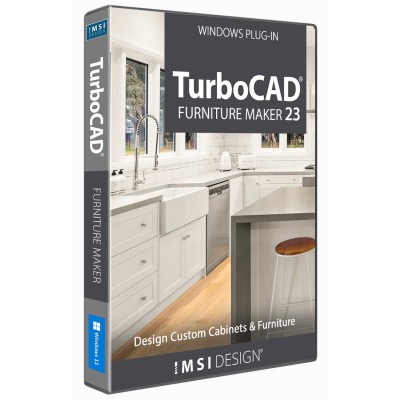
Design and Build Custom Furniture with Precision & Ease
TurboCAD® Furniture Maker 23 is a versatile plug-in designed for TurboCAD® Deluxe, Pro, and Platinum. It streamlines the creation and production of custom cabinets and furniture, offering advanced size configuration, extensive material options, intuitive functionality, and specialized tools for ceiling design to bring your ideas to life.
Quickly Create Repeating Patterns
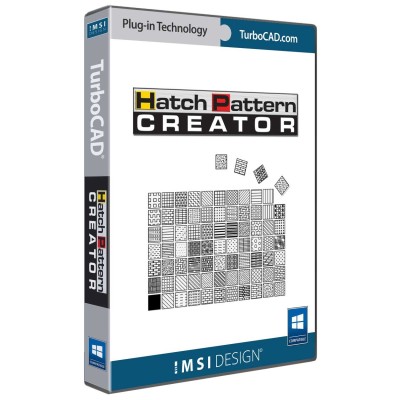
The Hatch Pattern Creator, already included in TurboCAD® Platinum and Pro, is now available as an add-on for TurboCAD® Deluxe and Designer users. Design and save repeating patterns. Enhance your designs with custom brush patterns.
Export TurboCAD® 3D Models to 3D PDF
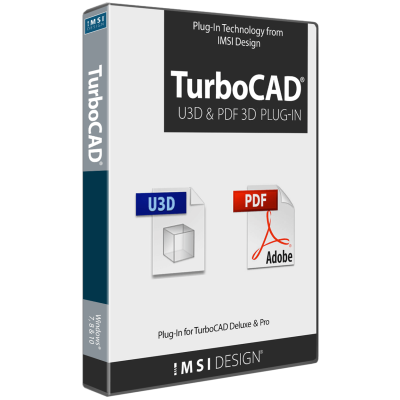
The U3D and PDF 3D Plug-In, already included in TurboCAD® Platinum, is now available as an add-on for TurboCAD® Pro or Deluxe users. This Plug-In enables the Export of 3D models to U3D and PDF 3D Formats. These 3D objects can be interactively visualized using Acrobat Reader, allowing recipients to view and manipulate the models without needing specialized CAD software. Save and share your work in 3D PDF, accessible to anyone with the free Adobe® Acrobat Reader.
Analyze Deflection & Stresses
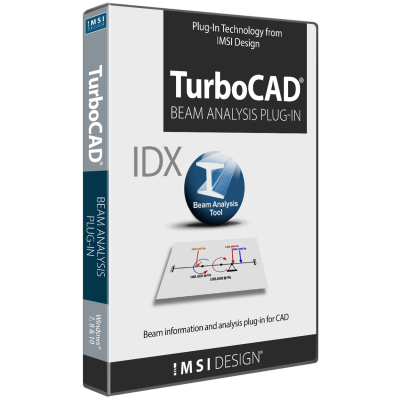
The Beam Analysis Tool is a Plug-In for TurboCAD® Platinum and Pro for Windows, offering comprehensive analysis of deflection and stresses on simply supported beams under direct forces. Its intuitive interface ensures immediate productivity, while advanced features provide flexibility in problem definition.
Unlock the full potential of your design process with Copilot, the AI-driven companion seamlessly integrated into TurboCAD®. This integrated AI tool streamlines navigation, expedites your project's progress, and enhances your design endeavors with insightful analysis. Copilot supports two levels: TurboCAD® Copilot Help and TurboCAD® Copilot Professional.