Enhanced Rendering Capabilities with RedSDK® Plug-in
The RedSDK® Plug-in for TurboCAD® significantly enhances the program’s lighting, luminance, and photorealistic rendering capabilities, providing a more robust and high-powered rendering solution. Integrating directly with the TurboCAD® Material Editor and Design Director, this plug-in works exclusively with TurboCAD® Platinum, Pro, and Deluxe.
Bought together with RedSDK Plug-in. Each is added as its own licence.
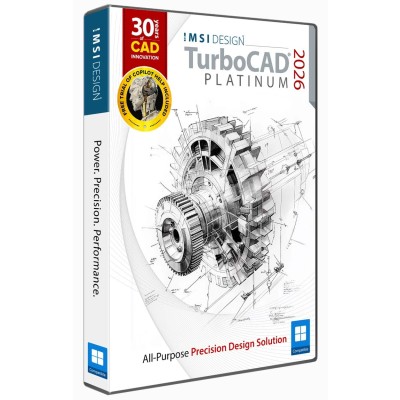
 TurboCAD 2026 Windows
$1,499.99
TurboCAD 2026 Windows
$1,499.99
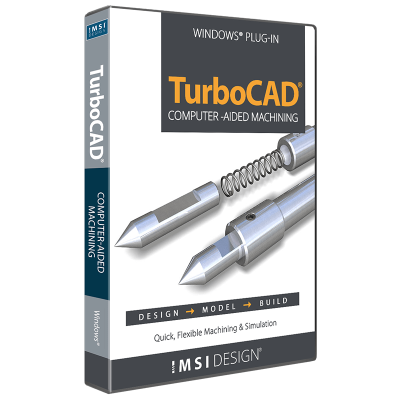
 CAM Plug-in for TurboCAD 2026 Platinum (64-bit)
$499.99
CAM Plug-in for TurboCAD 2026 Platinum (64-bit)
$499.99
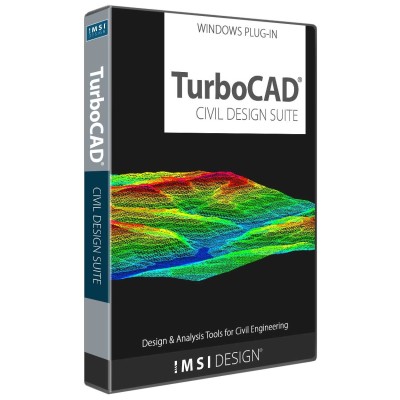
 Civil Design Suite
$399.99
Civil Design Suite
$399.99
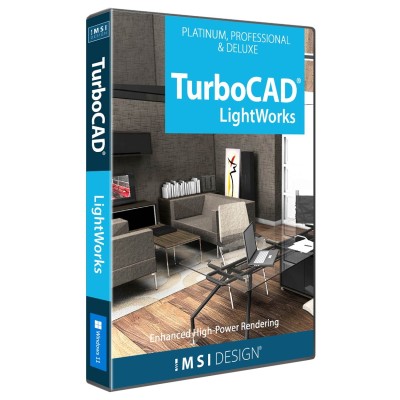
 LightWorks Plug-in for TurboCAD
$199.99
LightWorks Plug-in for TurboCAD
$199.99
TurboCAD® is equipped with a powerful rendering engine that allows you to create quick and impressive presentations of your designs. For those seeking advanced rendering options, the RedSDK Plug-in for TurboCAD® significantly enhances the program’s photo-realistic rendering capabilities, offering even more robust and high-powered rendering solutions.
Experience the power of enhanced rendering with the RedSDK® Plug-in for TurboCAD®. Transform your designs with high-quality, photorealistic renders and advanced lighting effects.
The Conceptual Selector tool works exclusively with the RedSDK® plug-in in the following display modes: Hidden Line, Draft Render, Quality Render, and Advanced Render. It utilizes the full 3D model, materials, lighting, adjustable scale, and editing capabilities. Users can edit selector geometry, materials, handles, and response to mouse movements. All data is stored in TCW Profiles, accessible for editing. Note: The Conceptual Selector is available only in Model Space and only for the 3D mode of the selector. It can be displayed only in RedSDK® windows. When objects in non-RedSDK® windows are edited, the classic selector mode will be used automatically.
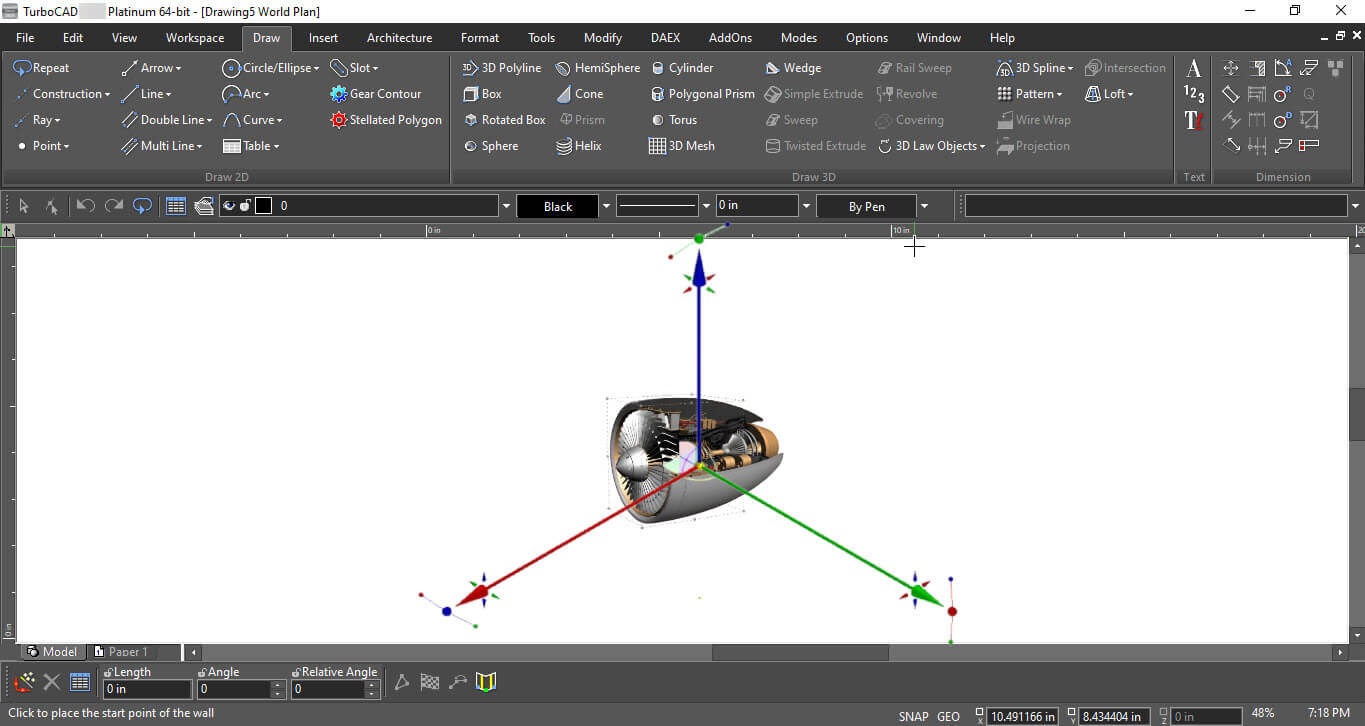
Conceptual Selector
To use any of the handles, you can click-hold-and-drag, or click-drag-click.
The RedSDK® Plug-in for TurboCAD® integrates directly with TurboCAD®’s Material Editor, offering an extensive range of shaders for material creation and finishing, complete with real-time previews. These previews are available not just on simple shapes like cubes or spheres, but also on selections from your model, streamlining the material editing process. Detailed descriptions of each shader within the dialog window guide you through each step, making the creation and alteration of materials more intuitive.
With a library of over 500 materials and the capability to create hundreds of custom colors, materials, and effects, your rendering possibilities are nearly limitless. The RedSDK® material library, a comprehensive collection of pre-defined materials, is designed for high-resolution, photo-realistic rendering. Additionally, many materials are configured for advanced interactive renderings, providing a 'real-time' configuration option.
The most advanced realistic materials are optimized for an excellent balance between quality and rendering speed, meeting the expectations of an all-purpose material.
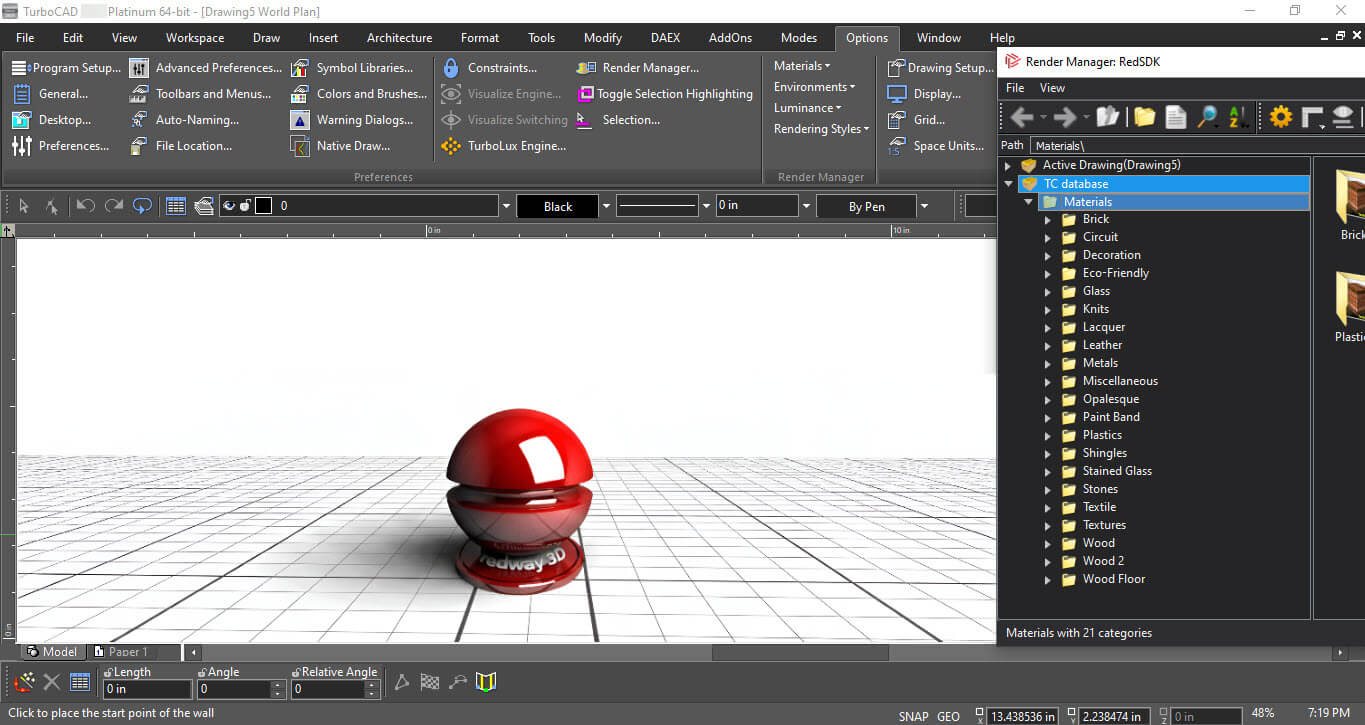
Materials
RedSDK® offers a comprehensive set of features designed to enhance rendering quality and performance. Multiple-importance sampling calculations provide significantly better rendering quality. The probabilistic distribution of lighting samples reduces the burden of rendering scenes with many lights, resulting in faster rendering and better quality with less noise. Adaptive Sampling for ray-tracing reduces the amount of calculation for a pixel based on a quality threshold, achieving performance savings of up to 75% of the rendering time with minimal loss in quality.
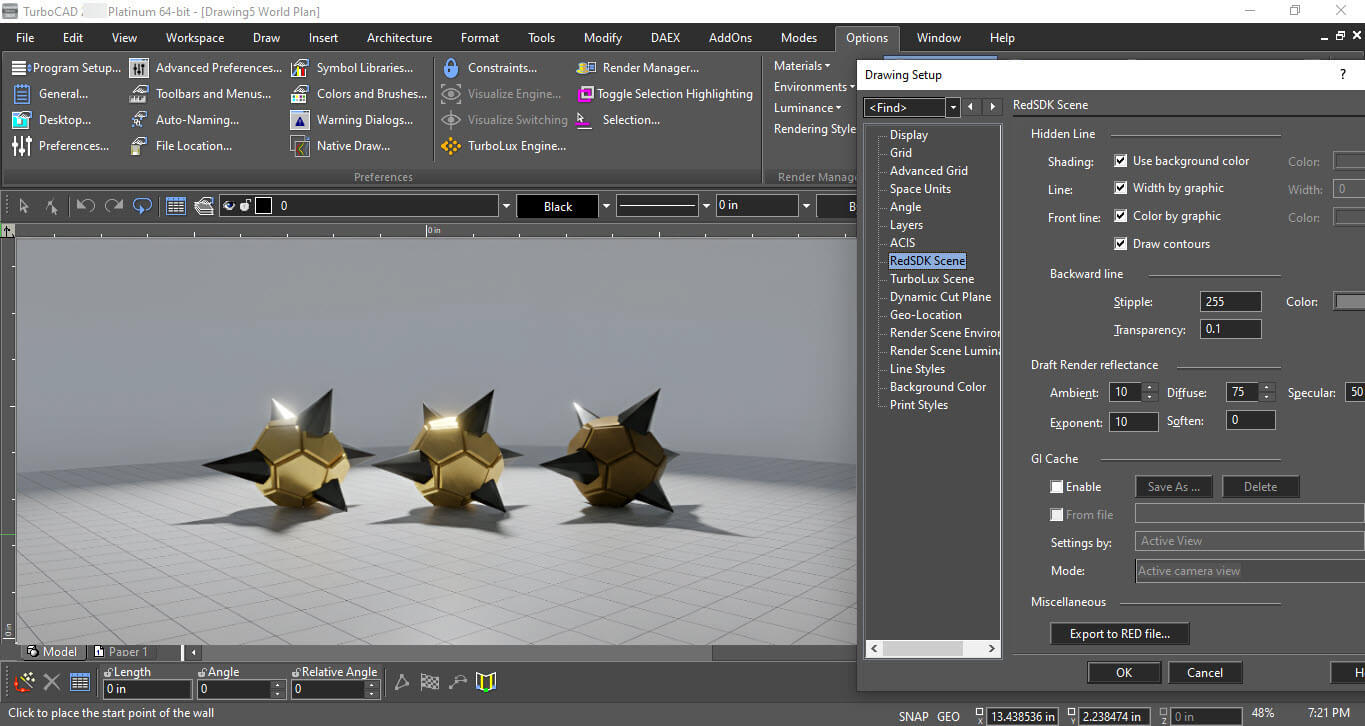
Rendering Quality & Performance
The post-processing capabilities of RedSDK® include a variety of effects such as sharpen, glow, blur, and depth of field. Additionally, color manipulation tools are available, including brightness/contrast controls, hue saturation lightness controls, and input/output levels controls. These effects are accessible in all RedSDK® modes: hardware, hybrid, or software.
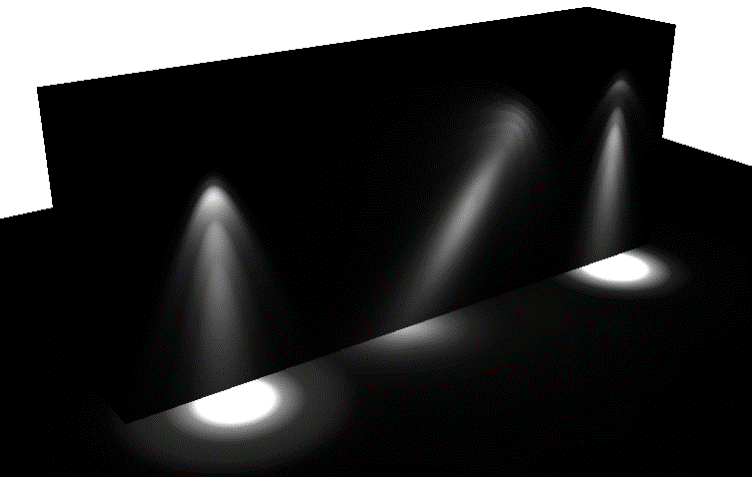
Post-Processing Capabilities
Engine features include debug output for error tracking. The feature set also includes cloud rendering capabilities and interfacing with hardware for optimal performance.
To address hardware issues, several configurations are in place. The NVIDIA® threaded optimization is disabled for all NVIDIA® drivers to prevent application crashes, with plans to re-enable it once the issue is resolved. On recent Intel® HD graphics, issues with loss of rendered frames are countered by ensuring intermediate rendering buffers are not released. The primary GPU detection method ensures accurate detection of the primary GPU, using an OpenGL-based approach.
Interactive color adjustments, filters, and sketch rendering are integral parts of RedSDK®. Color Adjustment parameters allow users to fine-tune the colors of their render styles, ensuring precise control over the visual output. Filters provide various effects such as sharpen, glow, blur, and depth of field, enhancing the final rendered image. Sketch Rendering offers the ability to create stylized, hand-drawn effects, adding an artistic touch to the render styles.
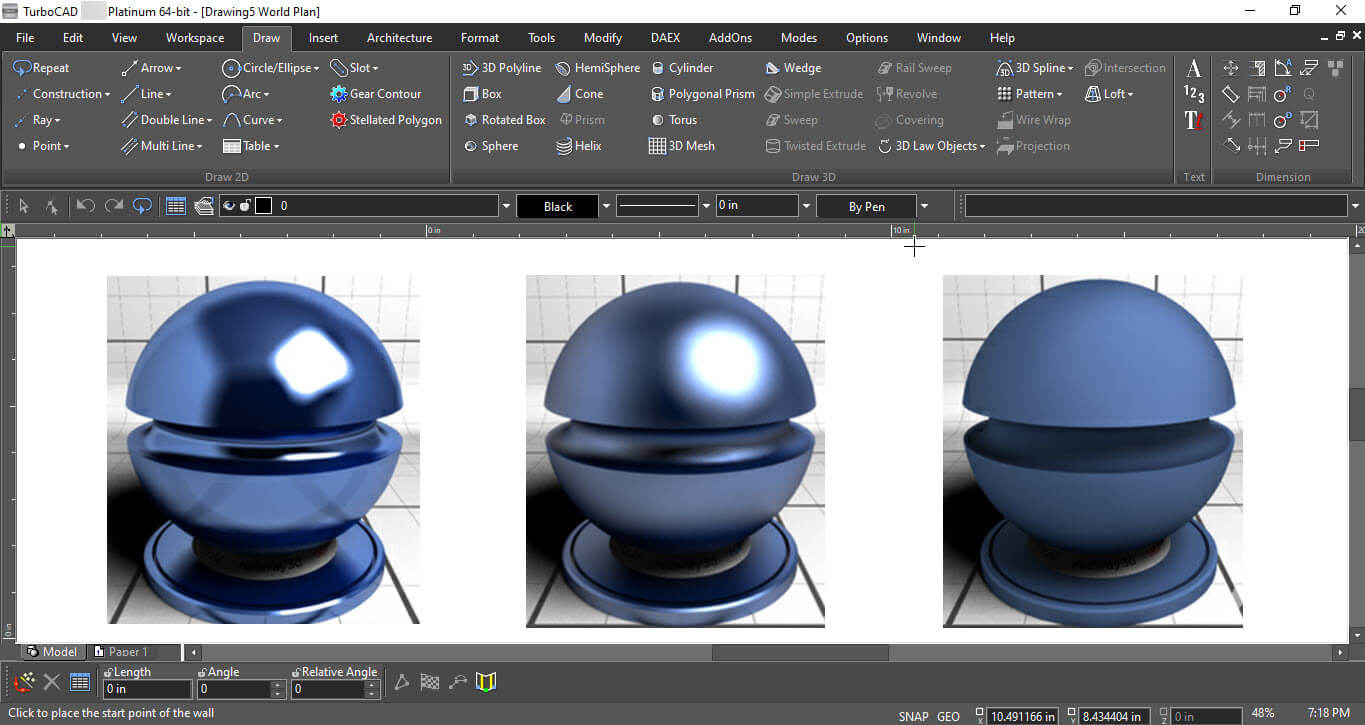
Interactive Color Adjustments
TurboCAD® 2026 Platinum, Pro, or Deluxe. Microsoft® Windows 11, Windows 10, Windows 8 (64-bit). 8+ GB RAM. 1 Gigahertz (GHz) or faster CPU.
Elite 2D/3D CAD Software
TurboCAD® for Windows offers versatile CAD tools for engineers, architects, designers, and hobbyists. With Platinum, Professional, Deluxe, and Designer versions, it suits all skill levels. Platinum includes advanced 3D modeling, ACIS® solids, and rendering. Professional combines 2D/3D design with strong file support. Deluxe is great for beginners or small businesses, while Designer is ideal for basic 2D drafting. With intuitive tools, tutorials, and wide file compatibility, TurboCAD® delivers precision and creativity for all your design needs.
Note: Multilingual Version (English, French, German). The installer includes additional languages, but some localizations are still in progress and may not function fully.
New: 64-bit for TurboCAD 2026 Platinum. Requires TurboCAD 2026 Platinum 64-bit, build 33.0.65.1 (2026.1) or later.
The Professional Machine Shop Solution
The CAM Plug-in for TurboCAD Platinum is the machinist’s choice for 2.5D CAD. This powerful plug-in generates native G-code for your machining equipment with no need for a post-processor. It includes a built-in communication module that allows you to set up your CNC controller effortlessly!
Civil Design Suite for TurboCAD® is a plug-in that enhances your TurboCAD® Software (Deluxe, Pro or Platinum versions) with tools for road design and analysis, surveying and data collection, construction documentation, map production, storm and sanitary analysis and much more.
Advanced Rendering Tools for Truly Realistic Results
The LightWorks® Plug-in for TurboCAD® significantly improves lighting, luminance, and photorealistic rendering capabilities, resulting in more robust and high-powered renders. Integrating directly with the TurboCAD® Material Editor and Design Director, this plug-in works exclusively with TurboCAD® Platinum, Pro, and Deluxe.
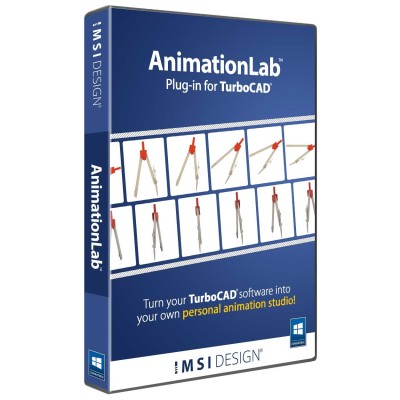
Animate your TurboCAD® designs.
AnimationLab Plug-in for TurboCAD® is easy-to-use software for creating professional-looking animations from your TurboCAD® designs. Use single click animation features to quickly enhance your work, or access high-end animation features for professional presentations.
New: 64-bit for TurboCAD 2026 Platinum. Requires TurboCAD 2026 Platinum 64-bit, build 33.0.65.1 (2026.1) or later.
The Professional Machine Shop Solution
The CAM Plug-in for TurboCAD Platinum is the machinist’s choice for 2.5D CAD. This powerful plug-in generates native G-code for your machining equipment with no need for a post-processor. It includes a built-in communication module that allows you to set up your CNC controller effortlessly!
Advanced Rendering Tools for Truly Realistic Results
The LightWorks® Plug-in for TurboCAD® significantly improves lighting, luminance, and photorealistic rendering capabilities, resulting in more robust and high-powered renders. Integrating directly with the TurboCAD® Material Editor and Design Director, this plug-in works exclusively with TurboCAD® Platinum, Pro, and Deluxe.
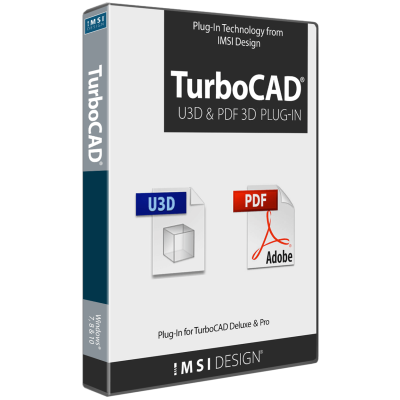
Export TurboCAD® 3D Models to 3D PDF
The U3D and PDF 3D Plug-In, already included in TurboCAD® Platinum, is now available as an add-on for TurboCAD® Pro or Deluxe users. This Plug-In enables the Export of 3D models to U3D and PDF 3D Formats. These 3D objects can be interactively visualized using Acrobat Reader, allowing recipients to view and manipulate the models without needing specialized CAD software. Save and share your work in 3D PDF, accessible to anyone with the free Adobe® Acrobat Reader.
Unlock the full potential of your design process with Copilot, the AI-driven companion seamlessly integrated into TurboCAD®. This integrated AI tool streamlines navigation, expedites your project's progress, and enhances your design endeavors with insightful analysis. Copilot supports two levels: TurboCAD® Copilot Help and TurboCAD® Copilot Professional.
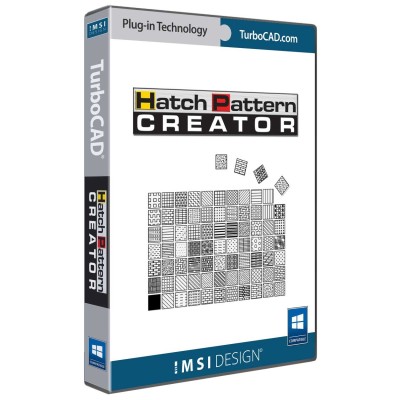
Quickly Create Repeating Patterns
The Hatch Pattern Creator, already included in TurboCAD® Platinum and Pro, is now available as an add-on for TurboCAD® Deluxe and Designer users. Design and save repeating patterns. Enhance your designs with custom brush patterns.
Civil Design Suite for TurboCAD® is a plug-in that enhances your TurboCAD® Software (Deluxe, Pro or Platinum versions) with tools for road design and analysis, surveying and data collection, construction documentation, map production, storm and sanitary analysis and much more.
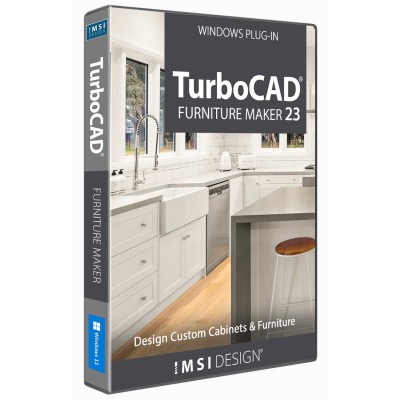
Design and Build Custom Furniture with Precision & Ease
TurboCAD® Furniture Maker 23 is a versatile plug-in designed for TurboCAD® Deluxe, Pro, and Platinum. It streamlines the creation and production of custom cabinets and furniture, offering advanced size configuration, extensive material options, intuitive functionality, and specialized tools for ceiling design to bring your ideas to life.
Unlock the full potential of your design process with Copilot, the AI-driven companion seamlessly integrated into TurboCAD®. This integrated AI tool streamlines navigation, expedites your project's progress, and enhances your design endeavors with insightful analysis. Copilot supports two levels: TurboCAD® Copilot Help and TurboCAD® Copilot Professional.
Analyze Deflection & Stresses
The Beam Analysis Tool is a Plug-In for TurboCAD® Platinum and Pro for Windows, offering comprehensive analysis of deflection and stresses on simply supported beams under direct forces. Its intuitive interface ensures immediate productivity, while advanced features provide flexibility in problem definition.