
Visualizing a home renovation or interior design idea has traditionally required advanced design skills, professional...
TurboCAD 2026 is here. Upgrade from any earlier version and save.
See upgrade prices →
Questions? [email protected]
Latest posts
-
 Turn Your Ideas into Stunning Home Designs with Copilot Image StudioRead more
 -
 Create Realistic Home Renderings with Reference Images in Home Design CopilotRead more
Reference images help transform ideas and inspirations into more accurate and personalized designs. With Home Design...
-
 Home Design Help in Copilot: Find Answers and Solutions FasterRead more
Home Design Help in Copilot is a powerful assistance feature designed to help users get quick guidance and support...
-
 Understanding Design Preservation in Home Design Copilot Image StudioRead more
Home Design Copilot Image Studio gives you precise control over how closely AI-generated images follow your original...
-
 From Ideas to Solutions: Using General Questions in Home Design CopilotRead more
Designing a home often begins with questions. Whether you’re planning a new house, renovating a room, choosing...
-
 Exploring Input Options in Home Design Copilot Image StudioRead more
Home Design Copilot’s Image Studio provides a powerful and flexible set of input options that allow you to generate...
-
 Enhancing User Experience with Light and Dark Theme Options in Home DesignRead more
The Light and Dark Theme feature in Home Design application allows you to customize the appearance of the interface...
-
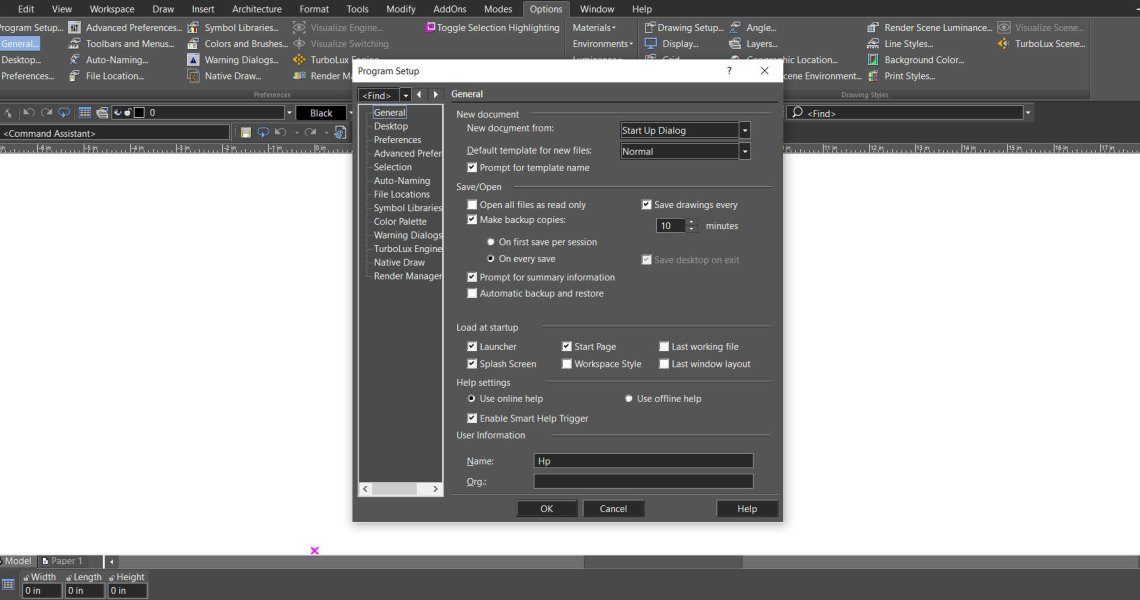 Copilot Palette: Smart Help TriggerRead more
Looking something up usually means breaking off what you were doing. Smart Help Trigger removes that step. With the...
-
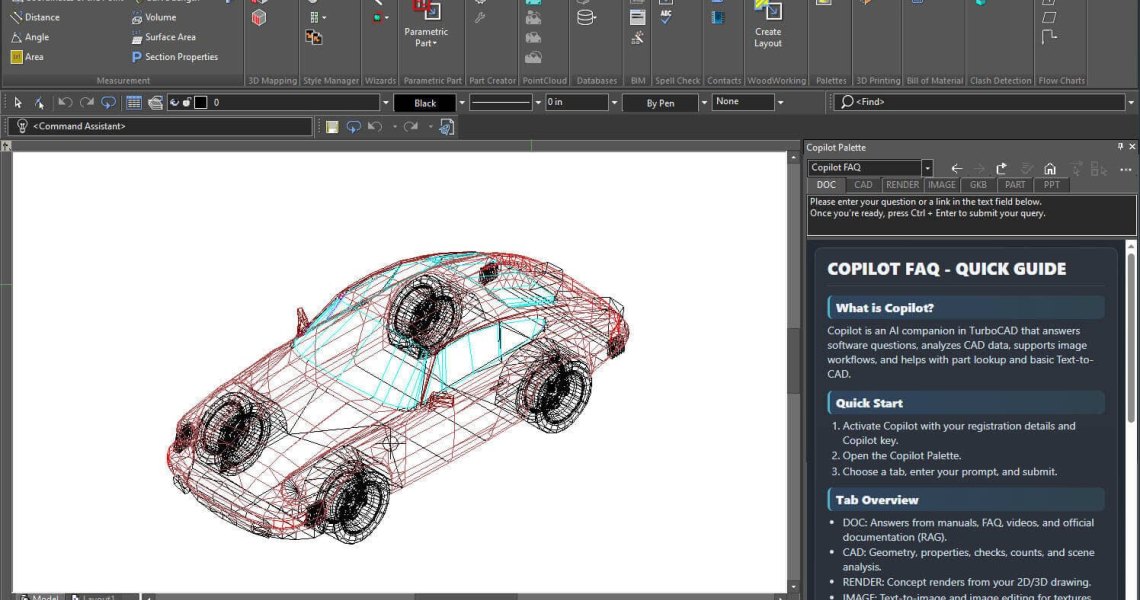 Conceptual Visualization from Your CAD Model with Copilot RenderRead more
There is usually a gap between a drawing that is technically finished and one a client can react to. Copilot Render...
-
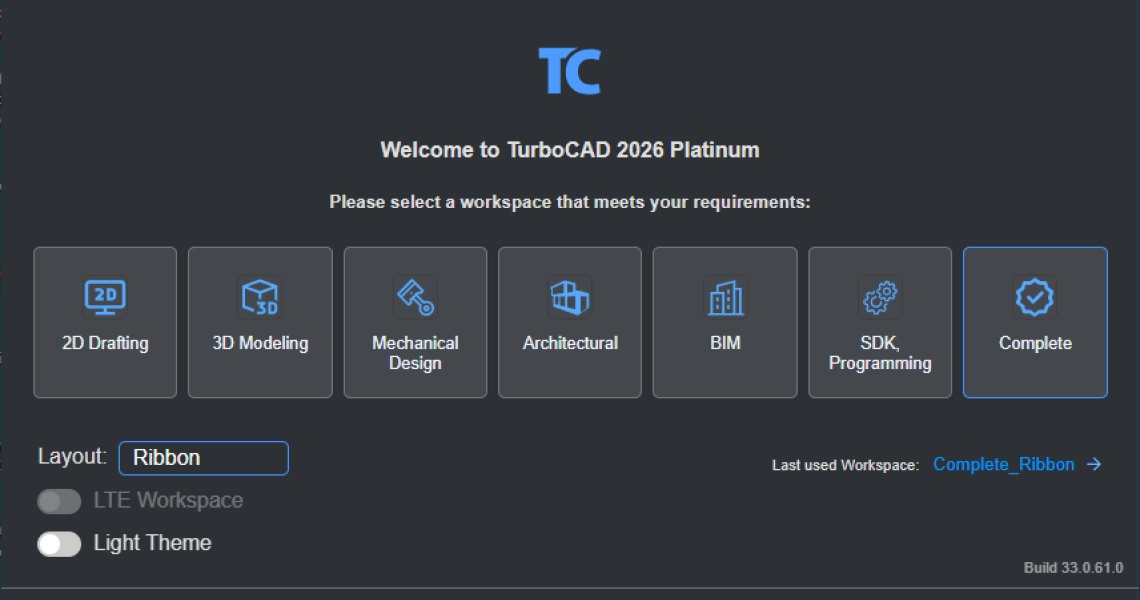 How to Customize and Manage TurboCAD WorkspacesRead more
Most drawing sessions only ever touch a fraction of what TurboCAD can do. A mechanical part and a floor plan need...
Blog categories
Search in blog
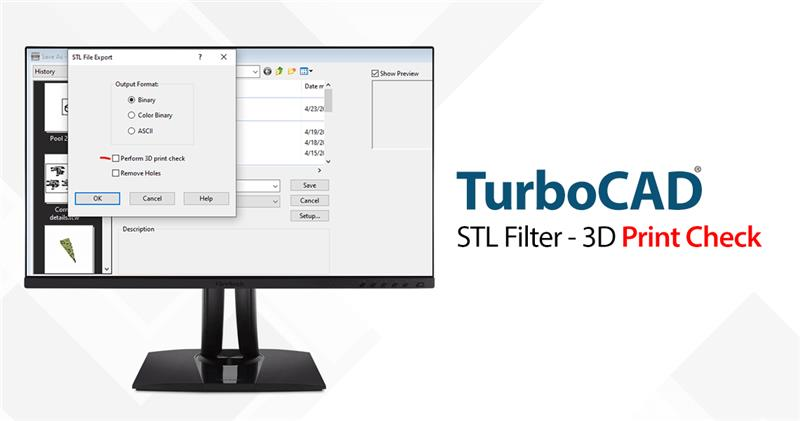
STL Filter – 3D Print Check
The STL Filter is a feature within TurboCAD, a leading CAD software, that allows users to export their designs in STL format, which is the standard file type used in 3D printing. But it's not just about file conversion; the STL Filter also performs a crucial '3D Print Check' to ensure that the design is ready for printing.
3D Print Check: Ensuring Topological Integrity
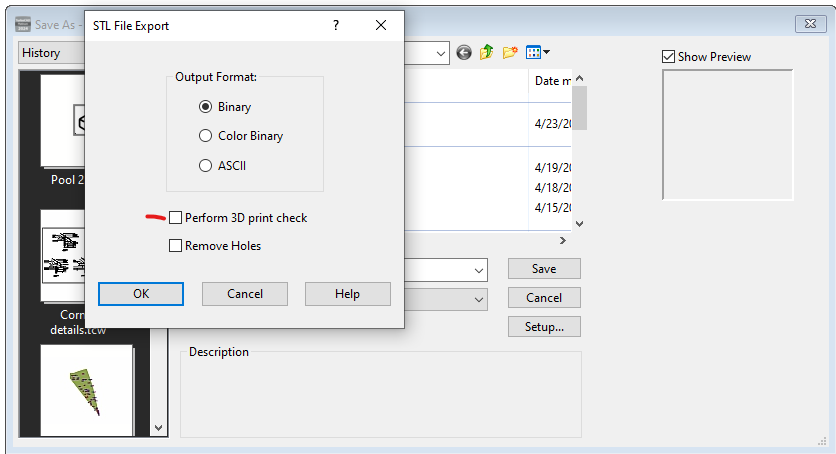
When exporting an STL file, the 3D Print Check option is a game-changer. It examines the part for common topological errors that could hinder the printing process. These include:
- Non-manifold edges
- Duplicate facets
- Collapsed facets
- Consistent normal orientation
- Open edges
- Shells
By identifying these issues before printing, the STL Filter saves time and resources, reducing the likelihood of print failures.
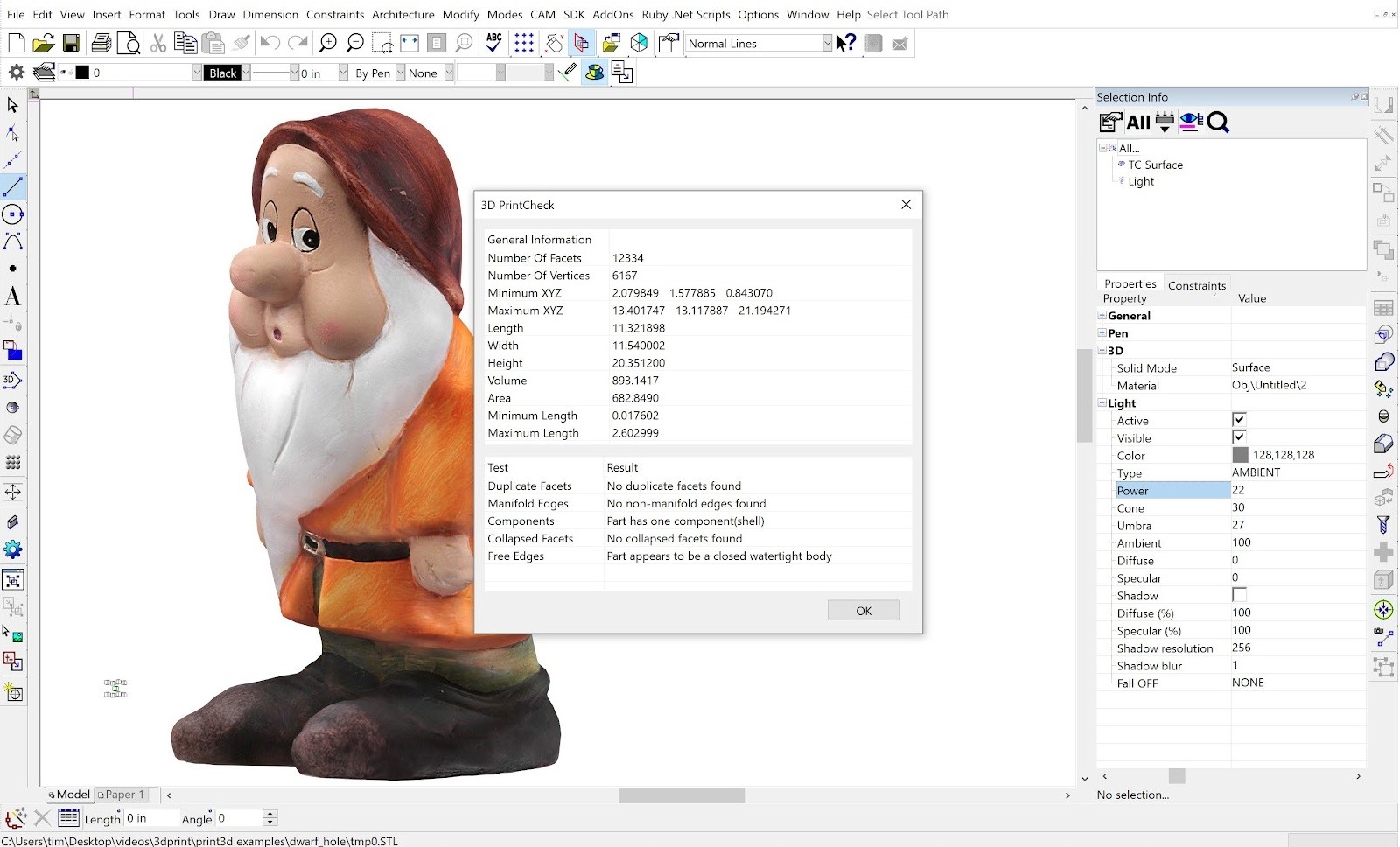
When saving an STL file, the user is given the option of performing a print check on the 3D model:
Geometry Information at a Glance
In addition to error checking, the STL Filter provides valuable geometry information about the 3D model, such as:
- Extents
- Number of facets/vertices
- Area
- Volume
This data is crucial for understanding the physical characteristics of the object to be printed and for making any necessary adjustments to the design.
User-Friendly Interface
TurboCAD's user interface for the STL Filter is designed with simplicity in mind. After saving the STL file, a dialog appears for each object, giving general information and the results of the 3D print tests. This immediate feedback allows users to make quick decisions about their designs.
Related posts
-
How to Customize and Manage TurboCAD Workspaces
Most drawing sessions only ever touch a fraction of what TurboCAD can do. A mechanical part and a floor plan need...Read more
-
Conceptual Visualization from Your CAD Model with Copilot Render
There is usually a gap between a drawing that is technically finished and one a client can react to. Copilot Render...Read more
-
Copilot Palette: Smart Help Trigger
Looking something up usually means breaking off what you were doing. Smart Help Trigger removes that step. With the...Read more
-
 TurboCAD Drafting Palette: A Powerful Tool for 2D Documentation
One of the most powerful, yet least known tools in professional versions of TurboCAD is the Drafting Palette. The...Read more
TurboCAD Drafting Palette: A Powerful Tool for 2D Documentation
One of the most powerful, yet least known tools in professional versions of TurboCAD is the Drafting Palette. The...Read more -
 TurboCAD for AutoCAD Users
Once you’ve made the decision to use TurboCAD, this guide will help you get started by outlining the few differences...Read more
TurboCAD for AutoCAD Users
Once you’ve made the decision to use TurboCAD, this guide will help you get started by outlining the few differences...Read more
Leave a comment